
The useful part of Gemini Tasks is also the part that should slow you down. In the US, Gemini can now take a shopping request, browse merchants you name, and complete a payment for you. Google calls the money guard a hard spending cap. In the product itself, that guard shows up as the max budget you set inside a purchase task, before you submit it.
Set that budget first, on purpose, and keep the second guard on as well. Purchase confirmation is on by default, and it means Gemini notifies you and waits while you review the order before you pay. A low cap with confirmation on is a bounded errand. A high cap with confirmation off is a standing order you may not see until the receipt lands.
What You Will Build or Learn
You will set up one purchase task the safe way. At the end, Gemini will have a named item to buy, a named set of merchants it can use, a max budget it is designed to stay inside, a deadline after which the task cancels itself, and a confirmation step that puts the final order back in front of you before payment.
You will also learn what the cap is not. The max budget in the help page belongs to that purchase task. Google does not describe it in that page as a monthly limit across all tasks. If you run three purchase tasks, each one needs its own budget, its own deadline, and its own review. Our research review of Gemini Tasks covers the wider launch, the calling feature, and the country limits around this buying flow.
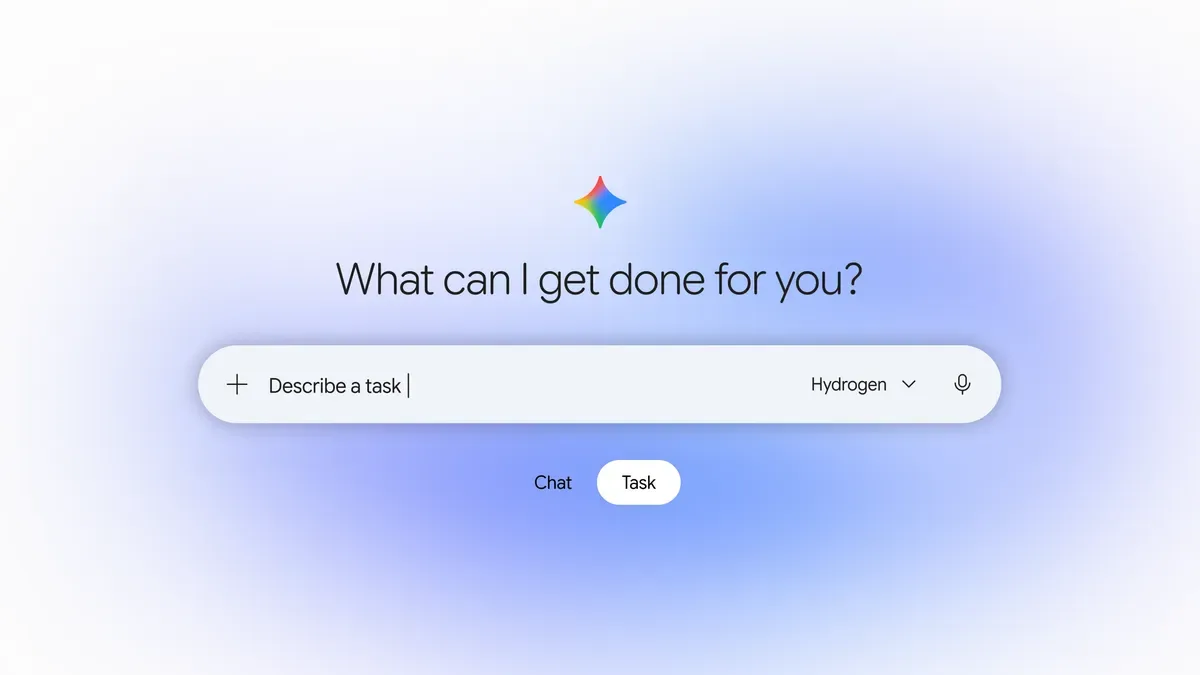 Start in Task mode, not in a normal chat. The task is where you hand Gemini work to carry out in the background. Image: Google
Before You Begin
Check the country rule first, because it decides whether the rest of this tutorial can work for you at all. Tasks itself went free on November 17, 2026 in the US, Japan, Korea, Canada, Australia and India. Buying is narrower. Google Help states the purchase and payment feature plainly: you must be 18 or over and in the US. A reader in Canada can use Tasks for other work and still have no buying flow to set a cap inside.
One more limit belongs up front. You cannot edit a live purchase task to fix a cap you set too high. Google Help says that if you need to make a change to an existing task, you will need to cancel it and create a new one. That rule makes the setup screen the place to get the numbers right, and it makes Step 8, the cancel path, part of the normal workflow rather than an emergency move.
Step 1: Check Your Account and Prepare Wallet
Action: sign in to Gemini with the personal Google Account you use for buying, and confirm that History is on for that account. Then open Google Wallet and confirm that the payment method and shipping address Gemini should use are the ones saved there. Google Help lists all three points as what you need: a personal account, History on, and a payment method saved to Google Wallet. You can add a payment method during setup if none is saved, but adding it now makes the later screens easier to read with care.
Expected result: you are signed in with the right account, and Wallet holds the card and address you expect. If you are signed in with a work or school account, stop here and switch accounts. The purchase flow will not appear for that account, and no cap setting can fix an account rule.
Step 2: Open Gemini and Switch to Task
Action: on your phone or tablet, open the Gemini mobile app, or go to gemini.google.com. Above the text box, tap Task. This is the same toggle Google describes in its launch post: open Gemini, flip the toggle from Chat to Task, and tell Gemini what you need done.
Expected result: Gemini is in Task mode, ready for work it will carry out in steps rather than a single reply. If you stay in Chat, you get a conversation about a product. In Task, you get a purchase task with details you can review and submit.
Step 3: Describe the Purchase in Plain Detail
Action: tell Gemini what you want it to buy or pay for. For a product, Google Help says to include specific product details, your preferred merchants, and your budget in the request itself. Name the item as exactly as you can, name the merchants Gemini may use, and state the budget in the prompt as well as in the review screen in Step 4. Follow the on screen instructions that follow, and grant browser permission if Gemini asks for it, since the help page notes that Gemini needs your permission to use a browser to work on the task.
Expected result: Gemini drafts a purchase task from your request. Read the draft as a stranger would. If the item, the size or version, or the merchant list is vague in your prompt, it will be vague in the task, and a correct cap on a wrong item is still a wrong order.
Step 4: Set the Max Budget and the Deadline
Action: on the review screen, verify or update each purchase detail Google Help lists. Check the item or list of items to purchase. Check the merchants Gemini can browse and buy from. Set your max budget, up to 1000 dollars. Set the task expiration date, within 14 days. Confirm your payment method, and confirm your shipping address.
This screen is the tutorial in one view. The max budget is the spending cap. Pick a number that covers the item and its normal charges and nothing more. A round number far above the price is not a cap in any useful sense. The deadline matters just as much: if Gemini does not complete the purchase by that date, the task is cancelled, per Google Help. A short window suits a common item. A longer window suits a scarce item, and it also leaves the task live for longer, which is a reason to keep the budget tight.
Expected result: the item, merchants, max budget, expiration date, payment method and shipping address on the screen all match what you intend. If any field is wrong, fix it now. After you submit, a change means a new task, as the Before You Begin section explains.
 The cap and the receipt live in the same place. Wallet holds the payment method before the task and the receipt record after it. Illustration: Dirty Static
Step 5: Leave Purchase Confirmation On
Action: find the Purchase confirmation setting on the setup screen and leave it on. Google Help says it is on by default, so you get notified to confirm the transaction before Gemini completes it. Check the setting rather than trusting the default, because a task set up on a shared device or after earlier experiments may not sit where you left it.
Expected result: with confirmation on, Gemini will notify you when the purchase is ready, and payment waits for your review in Step 7. If you choose to turn confirmation off for a later, routine task, do it knowing what Google Help says that choice does: the transaction completes on its own when your conditions are met, with no notice asking you to confirm first. For a first task, on is the only sensible setting.
Step 6: Submit the Task With Set Up Purchase
Action: when the details are right, tap Set up purchase, and follow any on screen instructions that follow. Google notes that Gemini may use a secure virtual card number when it completes a purchase, to keep your actual card details private. On your bank statement, a transaction completed by Gemini may show extra descriptors to help you identify it, per Google Help.
Expected result: the purchase task is now active. You can find active purchase tasks on the Scheduled page in Gemini Apps and on the Google Wallet website, per Google Help. Note where your task sits in both places before you close the app, so the Verification checks below take seconds rather than a search.
Step 7: Review the Ready Order and Pay
Action: if you kept Purchase confirmation on, watch for a notification from Gemini that your purchase is ready, and check for it regularly while the task runs. Select the notification to open the purchase order. Review the order details in full: item, merchant, total, payment method and shipping address. To complete the purchase, select Pay with G Pay, in the wording Google Help uses.
Expected result: payment happens only after that review, and only for the order you just read. If the total sits above the budget you set, or the item differs from the one you named, do not pay. Let the task expire or cancel it in Step 8 and start again with tighter wording. Google launch post language matches this shape: Gemini is designed to ask for your confirmation or pre approval before clicking Buy, and to stay within the hard cap you set up front. Designed to is a company claim about intent, and your review is the check that makes it real on your order.
Step 8: Cancel or Replace a Task That Is Wrong
Action: to stop a task before Gemini completes the purchase, cancel it in the conversation thread for that purchase task, as Google Help describes. You can also cancel by deleting the schedule for the task. To change any detail in a live task, including the max budget, cancel the old task and create a new one with the corrected details.
Expected result: the old task no longer runs, and no payment can complete under its old budget or deadline. Create the replacement only after the cancel is visible, so two live tasks never chase the same item with two budgets.
Verification
Run these checks and record what you see. The active task appears on the Scheduled page in Gemini Apps and on the Google Wallet website, with the item, merchant list, max budget and expiration date you set in Step 4. The Purchase confirmation setting reads as on for a first task. When the ready notice arrives, the order total sits at or under your max budget, and the merchant is one you named.
Finish with the receipt check. Google Help says you can find detailed receipts for purchases made by Gemini at wallet.google.com, with the merchant name, amount, date and payment method. Open that receipt and match each field against your order. Google also notes that these receipts do not replace official receipts from the merchant, so save the merchant receipt as your record for returns or warranty work.
Troubleshooting
| Problem | Likely cause | Fix |
|---|---|---|
| No purchase flow appears in Task mode | You are outside the US, or you are signed in with a work or school account | Use a personal Google Account in the US, with History on, per Google Help. Outside the US, use Tasks for work that does not involve buying for now |
| The max budget you want cannot be set | The figure sits above the limit Google documents for a purchase task | Set the max budget at or under 1000 dollars, per Google Help, or split the shopping into separate tasks with separate budgets and reviews |
| The task ended with no purchase | The expiration date passed before Gemini could complete it | Create a new task with a new date within 14 days. A task that misses its date is cancelled, per Google Help |
| The cap or another detail in a live task is wrong | Purchase tasks cannot be edited in place | Cancel the task in its thread or by deleting its schedule, then create a new task with the corrected details |
| No ready notice arrives | Purchase confirmation is on and the order is not ready yet, or notices for Gemini are off on the device | Check the Scheduled page for the task status, check device notice settings for Gemini, and wait for the notice before you expect a payment step |
| A purchase completed with no notice to confirm | Purchase confirmation was off for that task | Check the receipt at wallet.google.com, handle any return with the merchant, and leave confirmation on for the next task |
| You cannot find the receipt | You are looking only in mail or in the merchant account | Open wallet.google.com and find the Gemini purchase receipt there, with merchant, amount, date and payment method, per Google Help |
Next Steps
Run the same shape twice before you trust it with larger sums. A first task under a small cap teaches you how the ready notice, the order screen and the Wallet receipt look in your account. A second task with a different merchant teaches you where the wording in your prompt needs more detail. Only after those runs should you consider turning confirmation off, and only for a routine item with a price you know well.
Keep a simple record outside Gemini as well: item, cap, deadline, merchant and receipt amount for each task. That list makes the per task nature of the cap visible. Three tasks with a 200 dollar cap each are 600 dollars of possible spending, even though each screen showed a modest number. The cap protects a task. Your record protects the whole month.
Facts checked against Google sources on November 18, 2026. Budget, deadline, account and confirmation rules are from Google Help for purchases and payments in Gemini Apps. Cap and confirmation language in the launch post is a Google claim where it appears. This procedure was verified against those documents and is not presented as a personal test run.
Sources
- Google: Put Gemini to work for you
- Google Help: Make purchases and payments with Gemini Apps
- Product image: Google. Hero and wallet illustrations: Dirty Static
END OF TRANSMISSION
Stay curious. Question everything.