
For years the flow ran one way. You opened Word, Excel or PowerPoint first, then you called Copilot in to help inside the file. Microsoft has reversed that flow. Office in Copilot, made generally available at Ignite on November 17, 2026, puts the full Office creation tools inside the Copilot app, so a conversation can become a real file without a jump to another app first.
That sounds like a small change of address. In practice it changes where work starts, where it lives while a team shapes it, and when you need the standalone apps at all. This tutorial uses the workflow Microsoft describes in its own Ignite and Office posts. It does not claim a personal test run. The Verification section tells you how to confirm each part in your own account, because rollout and licence details vary by tenant.
What You Will Build or Learn
You will move one piece of work through the whole new path. Starting from notes or a plain request in the Copilot app, you will create a Word document, a spreadsheet or a deck inside Copilot, shape it there, share it with teammates, and find it again after you close the app. You will also learn when to stay in Copilot and when to open the full Word, Excel or PowerPoint app instead.
The example in the steps is a launch brief in Word, because Microsoft uses that exact case in its own posts. The same steps work for a budget model in Excel and for a deck in PowerPoint. Where the three file types behave in different ways, the steps say so in plain terms.
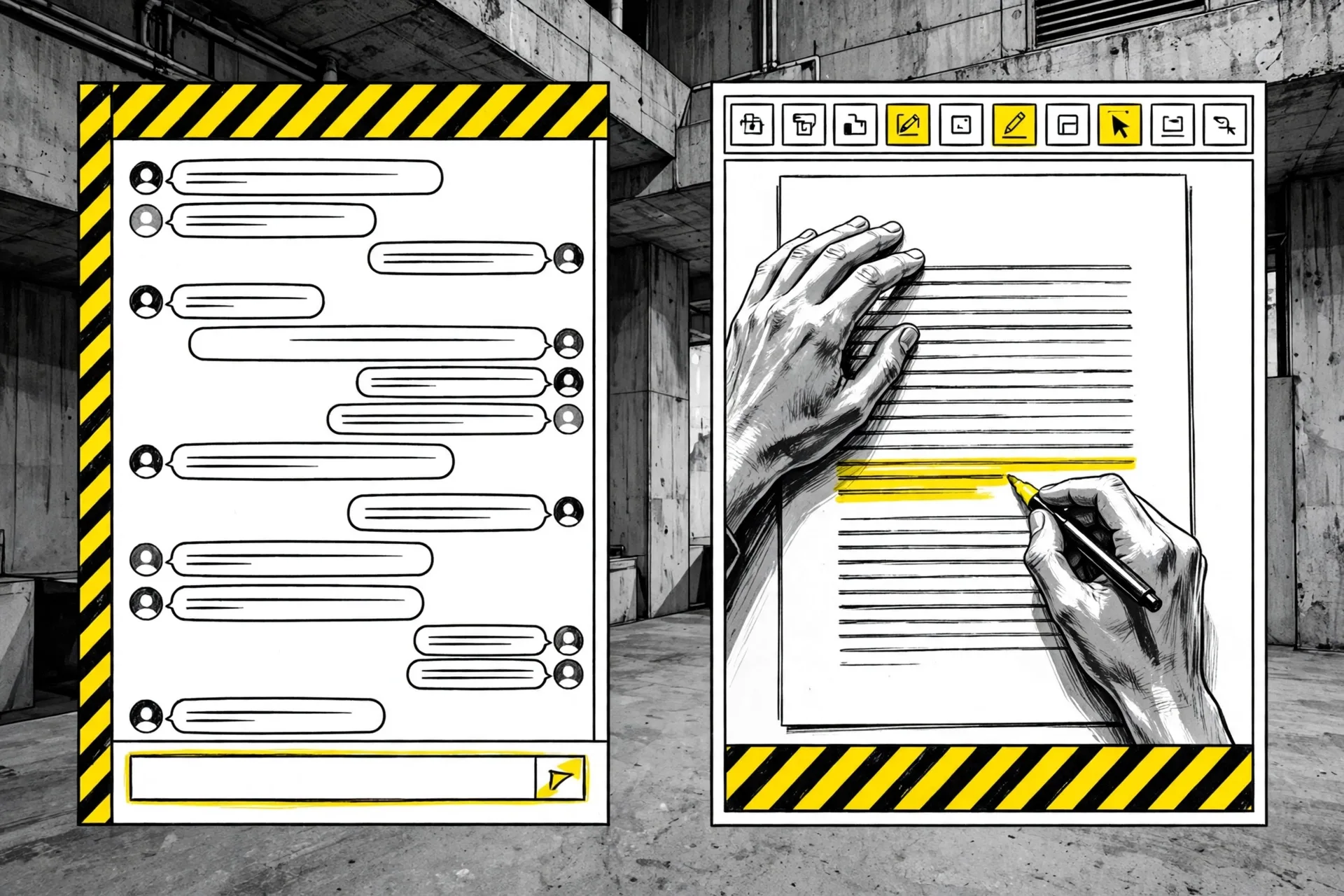 The file opens beside the conversation, not in place of it. You keep the talk and the document in view at the same time. Illustration: Dirty Static
Before You Begin
Know which stage each part sits at before you start, because the Ignite launch mixed stages in one announcement. Office in Copilot and Home, the new starting point where Chat and Cowork come together, are generally available. Today is in private preview. Workspaces is available in Frontier, which is Microsoft early access program. A missing Today or Workspaces entry in your app is not a sign that Office in Copilot has failed to arrive.
Chat and Cowork are the two ways to start work in the app. Chat is for quick questions and drafting while you stay in the conversation. Cowork is for larger tasks you delegate and come back to. You can start in either place to explore an idea or create a first draft, per Microsoft, and then keep editing in the same experience.
Our news report on Microsoft putting Office inside the Copilot app covers the launch itself, the price claim and the retirement of the separate Word, Excel and PowerPoint agents. This tutorial stays on the working steps that follow from that launch.
Step 1: Open the Copilot App and Start at Home
Action: open the Microsoft Copilot app on desktop, on the web or on mobile, and sign in with the account that holds your Copilot licence. On the web the support page points to the Copilot web app. On desktop, use the app for Windows or Mac. Look for the Work or Personal label near your profile in the navigation pane if you need to confirm which account you are in.
Expected result: you land on Home, the starting point where Chat and Cowork come together. From Home you can ask a question, start a draft, or hand a larger task to Cowork. In the navigation pane you should also see Library, which you will use in Step 5. If Home looks different from the description here, that can be normal. Microsoft notes that Home is still rolling out, so the app on your screen may differ from its support article for a time.
Step 2: Ask for a Real File in Chat or Cowork
Action: choose Chat for a draft you will shape yourself, or Cowork for a larger task you want Copilot to carry further. Then ask for the file in plain words, naming the type of file, the source material and the shape you want. Microsoft gives this prompt as its working example for Word.
Turn these research notes into a customer ready launch brief with an executive summary, key messages, risks, and next steps.
For Excel, name the model and its parts, for example a budget model with the lines and totals you need. For PowerPoint, name the audience, the number of sections you expect and any template or brand need. You can also let Auto choose the model for the task, or select a model yourself where your account allows it, per Microsoft.
Expected result: Copilot creates the file and it opens beside your conversation. A Word document opens next to the talk for a brief. The same pattern holds for a budget model in Excel and for a deck in PowerPoint. The file is a real editable Office file saved to OneDrive, not a block of text in the chat and not a picture of a document.
Step 3: Shape the File by Prompt or by Hand
Action: keep working in the same view. Use follow up prompts to change the file, or click into the file and edit it directly with the familiar controls in the canvas. Microsoft lists prompts such as asking to make the opening more direct, or to add a table that compares three rollout options. Your conversation history stays with the file, so later prompts can build on earlier choices.
In Excel, review each edit Copilot makes and ask what changed when a total or a formula looks off. Microsoft notes that Excel in this flow can explain changes and can suggest charts for a data set. In PowerPoint, check brand fit as you go. Microsoft notes that Copilot helps keep decks on brand and can apply custom templates and refine slides and images.
Expected result: the file updates in place, in the same file, with no separate draft to reconcile later. Edits from prompts and edits you type yourself land in one place, and the conversation remains open beside the file while you work.
Step 4: Bring Teammates In to Edit With You
Action: use the sharing controls on the file to invite the people who need to work on it. Work with them in the same view, with comments, coauthoring and presence shown in the app, as Microsoft describes it. Keep the conversation going while others edit, so questions about a section can sit beside the section itself.
Expected result: changes that you or others make show in real time in the same file. There is no copy sent by email and no later merge of two versions. Before you invite anyone, check the sharing list once more. A file that inherits permissions and labels still needs the right invite list for the work in front of you.
Step 5: Find the Work Again in Library
Action: open Library in the Copilot app when you come back later. Library brings together your recent files across Word, Excel and PowerPoint, plus pages and images made with AI, whether the files began in Copilot or in the Office apps. Find the file there, reopen it, and keep editing it beside Copilot. You can also start a new document, spreadsheet or presentation directly from Library.
Expected result: the file opens with its formatting, comments, sharing permissions and version history intact. Because the file lives in OneDrive, the work stays connected wherever you pick it up next, in Copilot or in an Office app.
 Library is the shelf for the whole flow. Files that began in a chat and files that began in Office sit in one list. Illustration: Dirty Static
Step 6: Hand Off to the Full Office Apps When Needed
Action: open the file in the standalone Word, Excel or PowerPoint app when the work needs tools or depth that you prefer there. Microsoft frames this as a normal part of the flow, not as an export or a rescue move. You can move from the Copilot app into the rich Office apps whenever you need them, and the file and its context move with you.
Expected result: the same file opens in the full app, saved in OneDrive, with its history and sharing unchanged. You have not made a copy. You have changed rooms, not documents. When the deep edit is done, you can return to Copilot and pick the file up again from Library.
Verification
Run these checks in your own account and record what you see. The file you asked for in Step 2 opened beside the conversation and you could edit it both by prompt and by clicking into it. The file appears in OneDrive and in Library, with the name and sharing you expect. A teammate you invited can open the same file and their edit shows in your view without a new copy appearing. The same file then opens in the full Word, Excel or PowerPoint app with its comments and history intact.
Finish with the account check. Note which account and licence you used, and whether Office creation in Copilot appeared as part of that licence in your tenant. Microsoft says that value is included in the Copilot subscription licence and does not spin a separate meter for a deck or a spreadsheet. Read that as a Microsoft claim and confirm it against your own plan and admin settings before you tell a wider team that no extra meter applies to them.
Troubleshooting
| Problem | Likely cause | Fix |
|---|---|---|
| No Office file opens beside the chat | Office in Copilot has not reached your tenant yet, or your licence does not include it | Check which licence your account holds on the Microsoft support guidance, confirm you are signed in with that account, and try again after rollout reaches your tenant |
| You cannot find the old Word, Excel or PowerPoint agent | Those separate agents are being retired as work moves into plain Chat, per Microsoft Message Center reporting covered in our news report | Start a new Chat conversation and ask Copilot directly to build or revise the file. Past files stay in OneDrive or SharePoint |
| The file is missing after you close the app | You are looking in the wrong account, or you searched only on one device | Open Library in the Copilot app under the same account, then check OneDrive for the same account |
| A teammate cannot open a shared file | The invite went to the wrong address, or the file carries a label or permission that blocks them | Review the sharing list and the sensitivity label on the file, then invite the correct account your team uses for work |
| Today or Workspaces does not appear | Those parts sit at earlier stages than Office in Copilot. Today is in private preview and Workspaces is in Frontier | Use Chat, Cowork, Library and Office in Copilot, which are the parts Microsoft lists as generally available, and leave the preview parts until your account gains access |
| Edits in Excel change a number you did not expect | A prompt changed a formula or a total while it updated the sheet | Ask Copilot what changed, review the edit in the workbook, and undo or correct that part before you share the file further |
| A deck drifts away from your brand | The deck was built without your template or brand guidance in the prompt | State the template and brand need in the prompt, apply your custom template in PowerPoint, and check each slide before you present it |
Next Steps
Move one real recurring task through this path for a week and watch where you still reach for the standalone apps first. That pattern tells you more than any launch post. Briefs and first drafts may live well in Copilot. Heavy models, long legal documents and decks with fine layout work may still earn a fast handoff to the full apps, and the flow is built to allow that move without a copy or a restart.
For a shared team habit, agree on two simple rules. New files that start as a chat get a clear name at once, so Library stays searchable. And every shared file gets one sharing check before the first invite goes out. Those two habits prevent most of the mess that a new place to create files could otherwise cause. Our guide to giving Copilot Autopilot recurring work is a useful next read if you plan to hand ongoing tasks to Copilot after the files themselves have moved.
Facts checked against Microsoft sources on November 18, 2026. Status, price and licence statements are Microsoft claims or Microsoft published guidance where they appear, and rollout timing can vary by tenant. This procedure was verified against those documents and is not presented as a personal test run.
Sources
- Copilot at Microsoft Ignite, Microsoft Copilot Blog, November 17, 2026
- Office at Ignite 2026, Microsoft Tech Community, November 17, 2026
- Introducing Office in the new Microsoft Copilot app, Microsoft Tech Community, October 9, 2026
- Get started with the Microsoft Copilot app, Microsoft Support
- Hero, side by side and library images: Dirty Static illustrations
END OF TRANSMISSION
Stay curious. Question everything.