
Local WordPress work used to start with plumbing. You set up a server stack, wired a database, and only then built the site you actually cared about. Generic coding agents fixed a different problem and created a new one: they could write code fast, but they knew nothing about WordPress blocks, themes, or the way a real site is put together.
WordPress Studio now attacks both problems in one app. Automattic announced the rebuilt workspace on November 4, 2026. The free desktop app puts its agent, Studio Code, at the centre. You describe a site in a chat, the agent builds a first version, and a live preview sits beside the chat while it works.
WordPress Studio
Official siteA local WordPress app rebuilt around an AI agent. Primary use case: building, editing and publishing WordPress sites from a conversation, on your own machine, with WordPress knowledge built into the agent harness.
Key features: a chat beside a live preview with sites and chats in one sidebar; a design flow that offers four looks and then four layouts and saves the result as DESIGN.md; Annotate pins on preview elements; custom instructions that apply to every new chat; the Studio CLI with studio code and studio ui; sync and publishing to connected WordPress.com and Pressable sites; and an MCP connection that gives outside agents the same tools and WordPress skills.
Advantages: the app itself costs nothing and its source is public; the agent validates blocks against the real editor and reviews its own work with screenshots, per Automattic; you are not locked to one model or even to the built in agent. Limitations: the stronger model tiers need purchased credits; the best sync paths point at WordPress.com and Pressable, not at every host; and the agent can edit a live site directly, which is power that needs care.
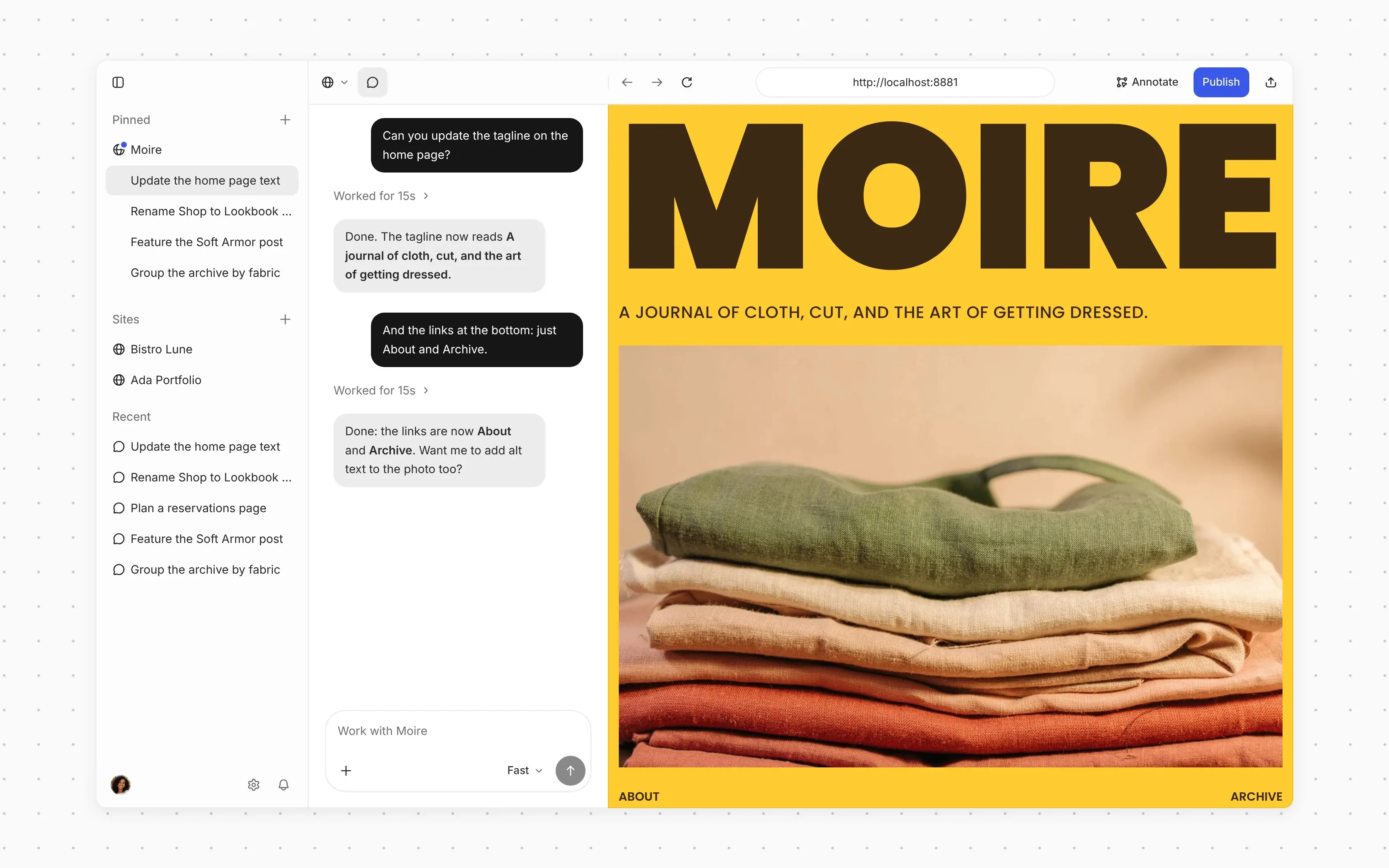 The new workspace: sites and chats in one sidebar, the chat in the middle, and the live preview on the right. Screenshot: WordPress.com
What actually changed
The agent is not new. Automattic added it to Studio as a beta in August 2026. What changed in November is the app around it. Sites and their chats now live in one sidebar, site and app settings share a single Settings window, and a command palette opens with Cmd+K on Mac or Ctrl+K on Windows and Linux.
The version history shows how fast the ground moved. Version 2.0.0, released on October 19, 2026, completed the move to the agentic interface and removed the last of the old Classic interface. A later 1.24.0 era set of changes moved every site to native PHP and let one agent handle both local sites and WordPress.com sites in a single conversation, so a chat can copy a live post into a local site as one task.
Under the workspace, the basics stay the same. Studio still runs real WordPress sites on your own computer, still shares a preview link when you want feedback, and still lets you decide where a site lives when it is ready. The Linux announcement puts the local pitch plainly: no Apache setup and no Docker to maintain.
Studio Code is a harness, not just a chat
Automattic calls Studio Code the WordPress harness behind the conversation. A harness is the set of tools, context and checks an agent works with. In plain terms, it is why this agent should fail less often on WordPress tasks than a general agent handed a folder of PHP files.
Per the announcement and the Studio Code docs, the agent checks its blocks against the block editor before it adds them to a site, and it reviews its own work by taking screenshots. It can create themes and plugins, edit files, run WP-CLI commands, deploy previews and publish a site. Slash commands cover repeat jobs such as a performance audit and an SEO audit, listed in the docs as /need-for-speed and /rank-me-up.
That WordPress knowledge is the real product here. A general agent can write a block. An agent that validates the block against the editor, screenshots the page, and knows what a theme file should look like is doing a different job. How well it does that job on a messy real site is still a claim to test on your own work, and this article treats it as an Automattic claim, not as a measured result from this desk.
Design first, and the choice is saved
Most agent built sites drift. The first page looks one way, the third page looks like a cousin, and nobody wrote down why. The design flow in Studio is a direct answer to that drift.
Ask for a site and, unless your request already describes a design, the agent shows four looks. Pick one and it shows four layouts in that look, each as a rendered preview with real imagery. Pick again and it starts building. Your choice is saved as DESIGN.md in the site root folder.
Later chats follow that file, and so do other coding agents that work on the site. The docs add two details that matter in practice. Fonts chosen in DESIGN.md are self hosted on the site, and the design system view shows the colours, type scale, spacing, corners and components the file defines. If the theme file called theme.json no longer matches DESIGN.md, Studio lists each difference and lets you pick which side wins, item by item or all at once.
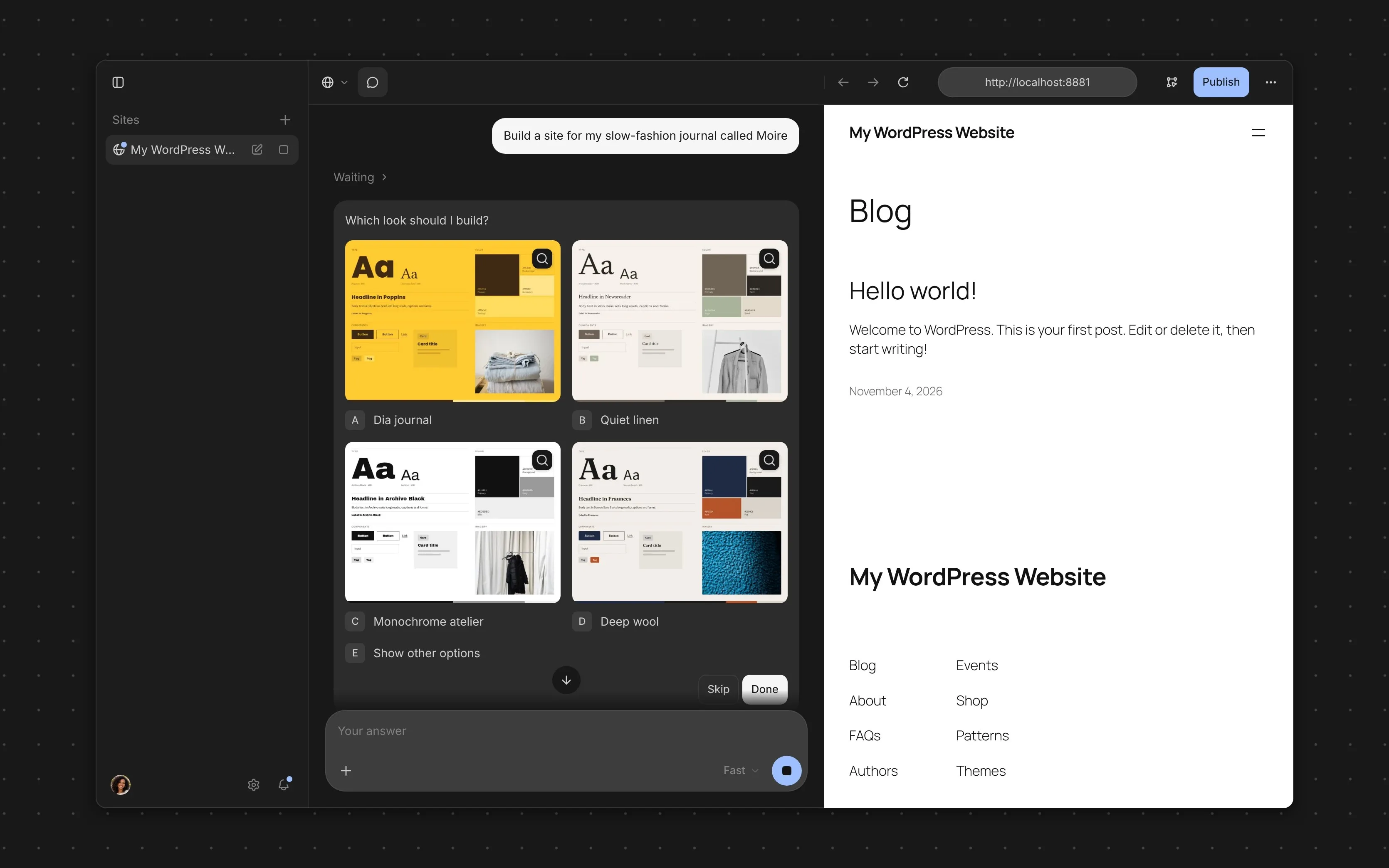 Four looks first, then four layouts in the look you picked. The result is saved as DESIGN.md. Screenshot: WordPress.com
Annotate lets you point instead of describe
Feedback is where chat agents waste the most turns. A note that says the second button should be bigger forces the agent to guess which button you mean. Annotate removes the guessing.
Turn on Annotate above the preview, click an element, and a numbered marker lands on it with a note box. You can attach a reference image to a note, stack up to 100 notes before you send, and send them all to the agent at once from the toolbar or the chat box. The docs note two limits: Annotate is not available for the Database view or for chats that work on the live site, and in the studio ui browser app you can annotate the design system but not the site itself yet.
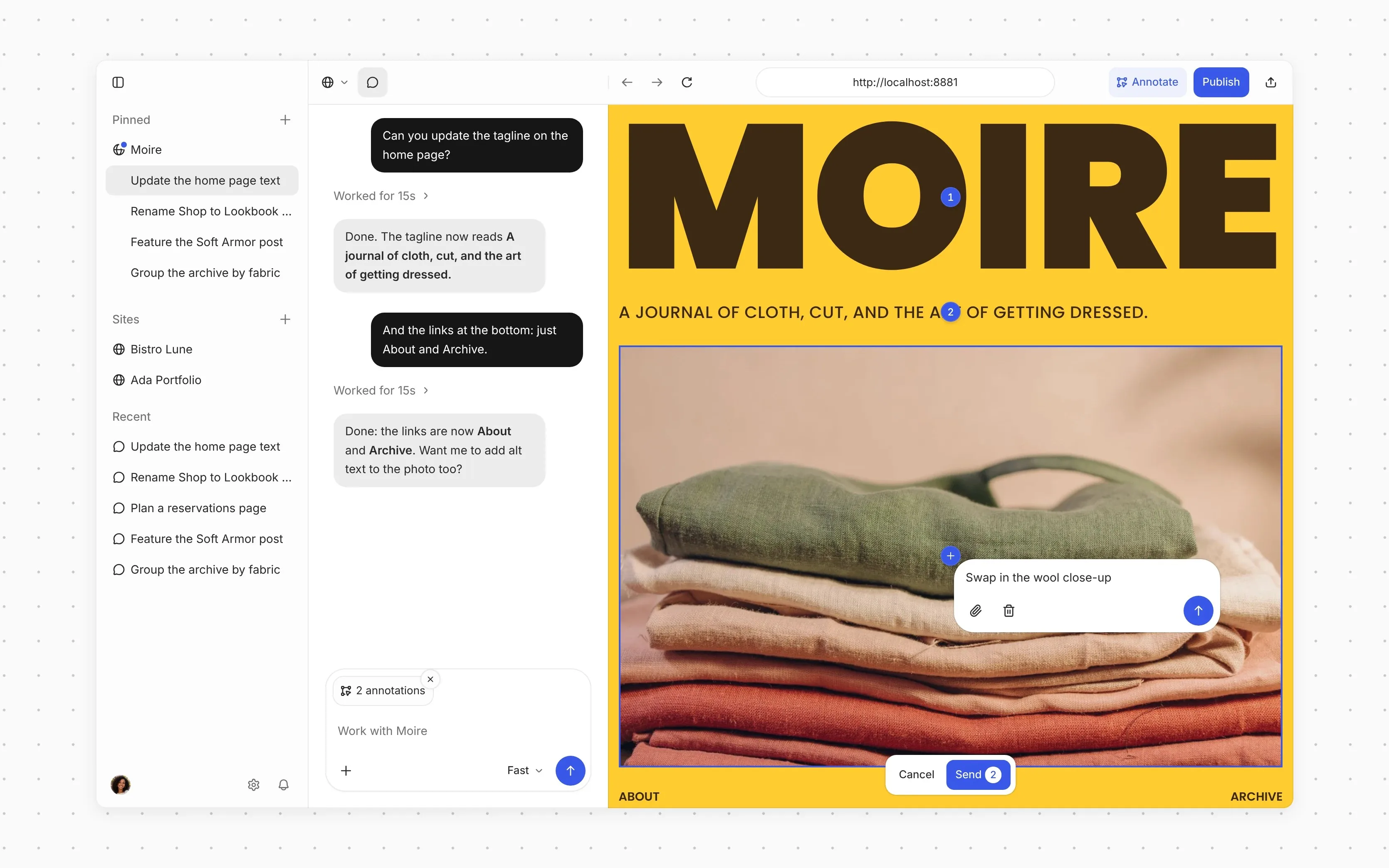 Point at the element, write the note, send the set. Annotate in the Studio preview. Screenshot: WordPress.com
It is a small feature with a large effect on how the work feels. In our coverage of other agent workbenches, from Kilo Desktop to Local Code on the Mac, the tools that respect your attention tend to win. A pin is attention spent once, in the right place.
What the agent costs
The app is free. The agent is where the meter lives, and Studio gives you three distinct ways to pay it. Read this table before you start a large build on Strong.
| Route | What you choose | How it is billed |
|---|---|---|
| WordPress.com AI Credits, Fast | Everyday edits and quick fixes | A one time free allowance covers Fast; a payment method on WordPress.com is required |
| WordPress.com AI Credits, Balanced or Strong | Careful reasoning, or complex builds with many steps | Purchased credits required; Balanced and Strong now run on newer models, per Automattic |
| Your own Anthropic key | Sonnet 5 or Opus 5, picked by name | Billed by Anthropic; no AI Credits used |
| Your own agent over MCP | Claude Code, Codex, Cursor, ChatGPT or Copilot Agent | Billed under that tool and its own account; Studio supplies the harness |
The docs are clear on the edges. New chats start on Fast, and once an account has purchased credits, new chats start on Balanced instead. Studio warns at 80 percent and 90 percent of your credit balance, and when credits run out the agent pauses while your local sites keep running. Switching a chat between WordPress.com models and Anthropic models starts a new chat, because the models do not share memory.
Custom instructions sit above all of this. Add them once in Settings, Instructions, with house rules such as a language, a market, or a plugin policy, and every new chat follows them. A site can also carry its own instruction files, such as AGENTS.md, listed in that site settings.
Bring your own agent over MCP
The boldest choice in this release is that Automattic does not force you to use its agent at all. MCP, short for Model Context Protocol, is the open standard that lets an AI tool call functions in other software. Connect an outside agent to Studio over MCP, through Settings, MCP, and that agent gets the same harness: the tools, the custom instructions, and the WordPress skills that know how to build, edit and publish a site.
The announcement names Claude Code, Codex and Cursor. The Studio site adds VS Code to that list, and a WordPress Studio extension for VS Code wires the MCP tools into Copilot Agent. Per the extension listing, it writes a workspace MCP file that gives Copilot Agent tools for local site management, WP-CLI, screenshots, block validation and audits, while keeping the setup visible in the workspace for review.
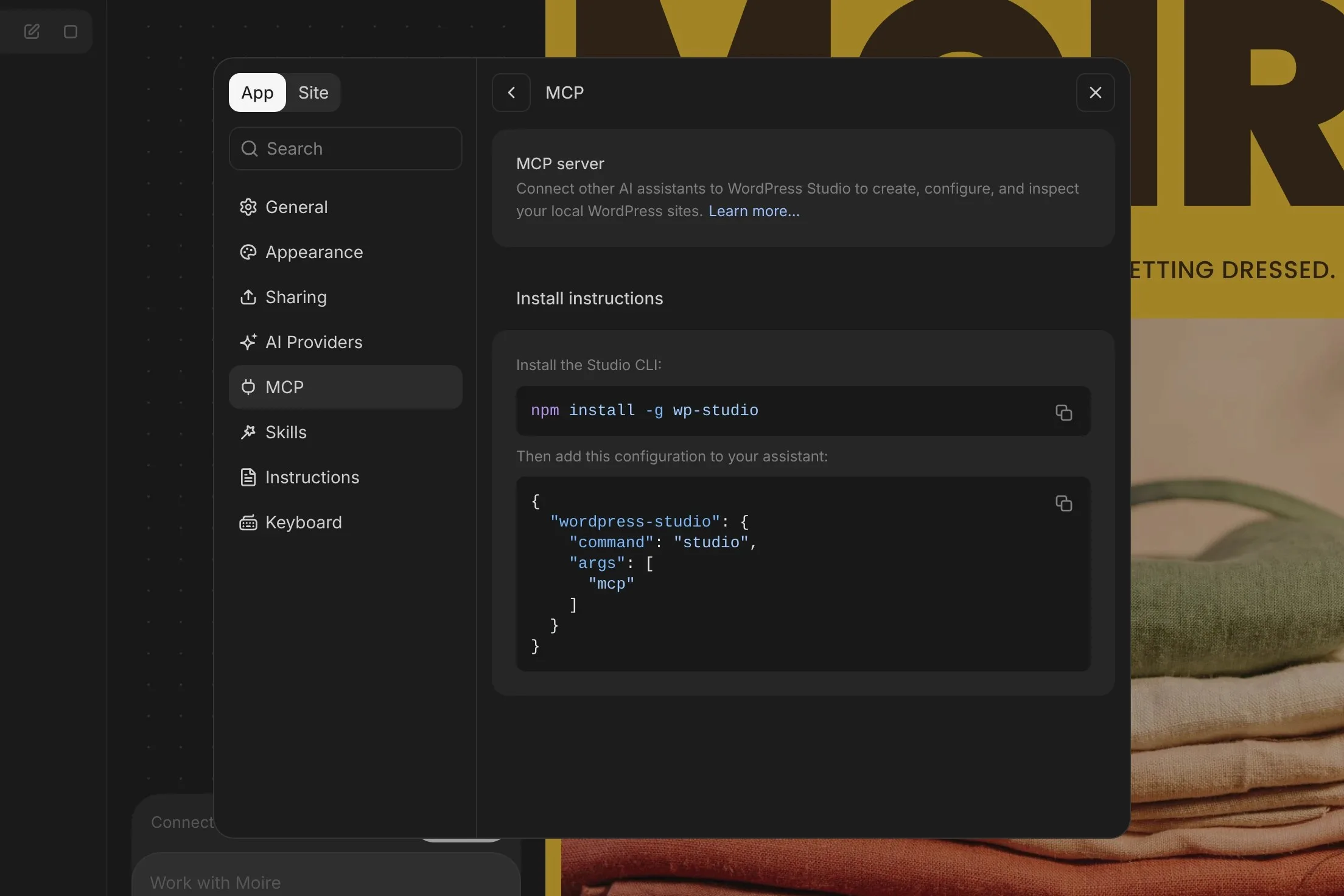 Settings, MCP: the place where Claude Code, Codex, Cursor and other agents connect to the Studio harness. Screenshot: WordPress.com
This is the same pattern we saw in WordCraft, where one command list serves both a person and an agent, and it is a healthier pattern than a closed chat box. If you already pay for an agent you trust, Studio becomes its WordPress hands. If you later change agents, the harness, the DESIGN.md file and your sites stay where they were.
The terminal route and the live site question
Prefer a terminal? Install the Studio CLI and the same agent is there.
studio code
studio ui
The first command opens a chat with the agent in your terminal. The second opens the full workspace in your browser. The docs list session commands to list, resume and delete saved chats, so terminal work can be picked up again later without starting over.
Publishing needs a clear head. Studio could already pull a connected WordPress.com or Pressable site down to your computer and push changes back up. Now the agent works either way: build locally and push when ready, or point it at the live site and let it change that site directly. The docs say a Live marker appears in the chat box when a chat works on a live site, and the agent never pulls a live site over a local one without your confirmation.
What Works
- Free and open source app on three systems, with no Docker setup
- Agent checks blocks against the editor and reviews its work with screenshots
- DESIGN.md keeps design choices written down for later chats and other agents
- Annotate pins feedback to the element it is about
- No lock in: credits, your own Anthropic key, or your own agent over MCP
What Does Not
- Balanced and Strong need purchased credits, with no simple per tier price in the docs checked
- Annotate does not work on live site chats or the Database view
- Sync and publishing are built for WordPress.com and Pressable first
- Direct live editing is convenient and risky in equal measure
Which should you choose
Choose Studio with WordPress.com credits if you build WordPress sites and want the simplest start. Download the app, sign in, use the free allowance on Fast, and learn what a real task costs before you buy credits for Balanced or Strong. Freelancers and site owners who live on WordPress.com or Pressable get the smoothest path, because sync, previews and publishing are built for those hosts first.
Choose Studio with your own Anthropic key if you already pay Anthropic and want named models. You pick Sonnet 5 or Opus 5 directly, your billing stays with Anthropic, and no credit balance sits between you and the work. This route suits developers who already track API spend as part of the job.
Choose the MCP route if your agent already lives elsewhere. Teams settled on Claude Code, Codex, Cursor or Copilot Agent keep their habits, their accounts and their review process, and gain WordPress tools, skills and validation they did not have. Studio earns its place as the harness, not as another chat to learn. Our tutorial on running several coding agents side by side shows why keeping one home for agent work matters once the novelty wears off.
Look elsewhere if your hosting and workflow sit far from Automattic ground. If your sites run on a host with its own local and staging tools that your team already trusts, and you have no plans to sync with WordPress.com or Pressable, Studio local sites still work, but the best parts of this release will feel built for someone else. Look elsewhere, too, if you need a published, predictable price per build today: the credit model is usage based, and the docs checked here do not turn it into a flat rate.
Final thoughts
Studio started as an answer to local setup pain. This release turns it into an answer to a newer question: where should an agent do WordPress work, and under whose rules?
The answers on offer are unusually grown up. A harness that validates its own blocks. A design file that outlives any single chat. Feedback pinned to the page, not buried in prose. And an open door for rival agents over MCP, even though locking the door would have been the easier business move. The tradeoffs are just as plain: the strong tiers cost credits at rates you should test before you trust, the best paths lead back to Automattic hosting, and an agent that can edit a live site will eventually be aimed at one by someone in a hurry. Use it locally first, keep DESIGN.md honest, and Studio is now the WordPress workbench to beat.
Sources
- Announcement, workspace, design flow, Annotate, model tiers and MCP: WordPress Studio: A New Workspace for Building with WordPress, WordPress.com, November 4, 2026
- Studio Code, tiers, credits, Annotate steps, CLI and providers: Studio Code, WordPress.com Developer Resources
- Product overview, three ways to use Studio, sync and previews: WordPress Studio, developer.wordpress.com/studio
- Version history, including 2.0.0 on October 19, 2026: WordPress Studio Changelog
- Independent first look at the released workspace: WordPress Studio New Workspace Is Out, Elliott Richmond, November 5, 2026
- VS Code extension and Copilot Agent tools: WordPress Studio for VS Code, Visual Studio Marketplace
- Screenshots: WordPress.com, from the November 4, 2026 announcement
END OF TRANSMISSION
Stay curious. Question everything.