
The safest moment to govern an agent is before it can act while nobody watches. Databricks made that timing plain on November 11. Genie and Genie Ontology are generally available now. The background mode that makes Genie work on its own is coming soon to preview and beta programs, and Databricks gave no date for it.
That split is not a delay to complain about. It is a work window. Every control the background mode will rely on already exists in the parts that ship today, and each one takes time to set with care. This tutorial builds those controls in order and claims no test run in a live workspace. The Verification section tells you how to judge the result in your own account. Our news report on the Genie launch covers the announcement in full.
What You Will Build or Learn
You will end with a Genie setup that is ready for background work and safe without it. That means one Genie Agent scoped to one job, data access set in Unity Catalog and nowhere else, trusted answers for the questions that matter most, and a budget that can alert and block.
You will also have a short list of choices to make before any preview invite lands. Which actions need a person to approve them. Which goals may run on a schedule. Who owns the alerts that arrive in the priority inbox and by email. Writing those choices down now is faster and calmer than writing them under launch pressure.
 Data first, approval second, alerts third. The order matters more than the tools. Illustration: Dirty Static
Before You Begin
Pick one job with a clear owner and a result you can check. A weekly forecast check, a watch on customer usage, or a revenue trend brief all fit the shape Databricks describes. A vague goal such as watch the business does not. Background work magnifies whatever scope you give it, in both directions.
One more limit shapes this whole guide. Databricks has not published a setup screen, a switch or a start date for the background mode, so this tutorial invents none. Steps 1 to 7 use documented Genie, Unity Catalog and Unity Gateway features that exist today. Step 8 states the safe pattern to apply when preview access reaches your workspace, in the terms the launch itself uses.
Step 1: Confirm What Your Workspace Can Use Today
Action: open your Databricks workspace and confirm three things. Genie appears for your account. At least one catalog you need sits in Unity Catalog. A pro or serverless SQL warehouse exists that the agent builder can use. Then write down the availability split from the launch and share it with anyone planning dates around this work.
Expected result: your plan rests on the parts that are generally available, namely Genie and Genie Ontology. Genie Search, Ontology Manager and the background mode sit on the preview list, with no date promised. Anyone who promised a launch date for background work now has a correction in writing.
Step 2: Scope One Agent to One Job
Action: choose one audience and one domain for the first Genie Agent. List the tables, views or metric views that job needs, and cut any table whose absence would not change the answers. The docs allow up to 50 tables, views or metric views in one agent. Treat that figure as a ceiling in the docs, not as a target for a first build.
Job: Weekly forecast check for the sales team
Audience: Sales leads only
Data: YOUR_CATALOG.sales.forecast, YOUR_CATALOG.sales.pipeline
Out of scope: Pay data, support tickets, product usage tables
Owner: NAME_OF_PERSON_WHO_OWNS_THIS_AGENT
Expected result: a scope note a new team member can read in one minute. It names the job, the audience, the data and the owner. If a table has no clear reason to be in that note, it stays out of the agent.
Step 3: Fix Unity Catalog Permissions First
Action: grant access in Unity Catalog, in the order the catalog checks it. The builder needs the Databricks SQL entitlement, CAN USE on the chosen warehouse, and SELECT on the data the agent will use. Each person who will use the agent needs SELECT on that same data, because Genie checks data access with the identity of the person who asks. Replace the names in this example with your own catalog, schema, table and group.
GRANT USE CATALOG ON CATALOG YOUR_CATALOG TO `YOUR_GROUP`;
GRANT USE SCHEMA ON SCHEMA YOUR_CATALOG.YOUR_SCHEMA TO `YOUR_GROUP`;
GRANT SELECT ON TABLE YOUR_CATALOG.YOUR_SCHEMA.YOUR_TABLE TO `YOUR_GROUP`;
Expected result: members of the group can reach the table through the catalog and the schema, and no wider grant was needed to make it work. Add row filters or column masks in Unity Catalog for rows or columns that only some users may see, and note them in the scope note from Step 2. Access rules belong in the catalog, never in agent instructions alone.
Step 4: Create the Genie Agent
Action: in the workspace sidebar, select Genie Agents, then select New. Choose the tables from your scope note and create the agent. In the agent settings, confirm the warehouse is the pro or serverless warehouse from Step 1. The creator holds CAN MANAGE on an agent they create. Use the sharing settings to give editors CAN EDIT and give the pilot group only the level it needs to run the agent.
Expected result: the agent opens in a chat view and answers a plain question about the scoped data, with the SQL it used shown for review. If creation fails, the most common cause in the docs is a missing warehouse right. Check CAN USE on the warehouse before you change any data grant.
Step 5: Add Context and Trusted Assets
Action: add context in layers, and test after each layer. First, check the names and descriptions on tables and columns in Unity Catalog, because Genie reads that metadata when it turns a question into SQL. Next, add example SQL queries for the questions your audience asks most. Then add trusted assets for the questions that must use exact logic every time. A trusted asset is a query or a Unity Catalog function whose logic an editor has verified in advance. Add plain text instructions last, for rules that examples cannot show.
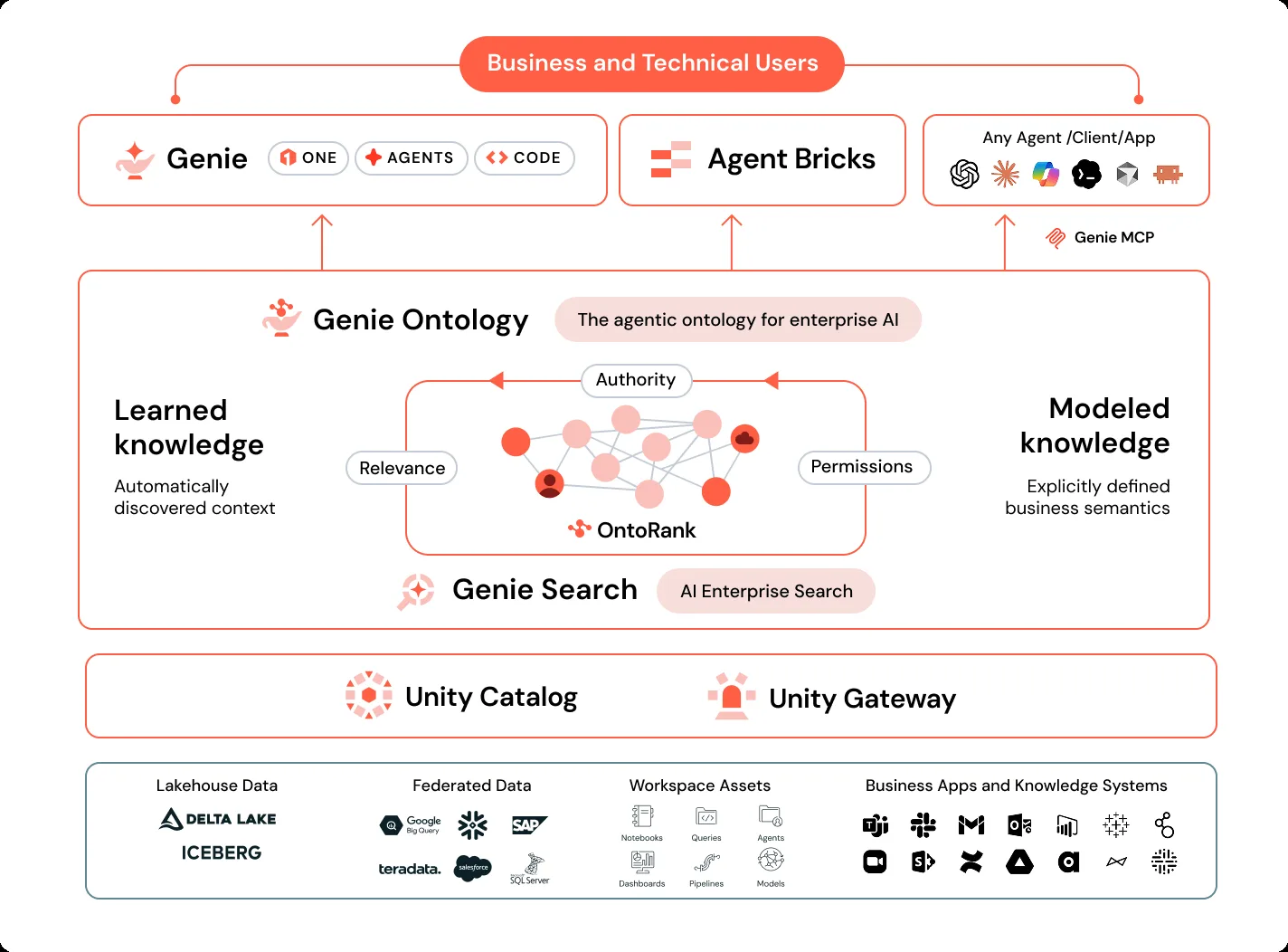
Expected result: common questions stop drifting between runs. When Genie uses a trusted asset, the answer comes from the verified logic you supplied, and the reader can open the details to see the query or function behind it. This is also where Genie Ontology earns its place. Databricks says the ontology holds company definitions, metrics, people and processes and keeps that map current, so set the authoritative definitions in Unity Catalog rather than in chat prompts.
Step 6: Benchmark It, Then Test as a Restricted User
Action: open the agent Benchmarks view and add benchmark questions before you tune further. Write each common question with the SQL answer that gives the correct result, in the wording your audience uses. Run the benchmarks and read the results on the Evaluation view. Then sign in with a test account that holds only the pilot group grants from Step 3, and ask the same questions again, plus one question about data that account may not see.
Expected result: benchmark results show which questions pass and which need a context fix, and each fix becomes a new benchmark question. The restricted account sees only the data its grants allow, and a question about data outside those grants returns no data from that table. A pass under an admin account alone proves nothing about safety, which is why this step uses two accounts.
Step 7: Set Approval Rules and a Budget in Unity Gateway
Action: ask an account admin to do this step, because budgets need that role. In the account console, create a budget for Genie with the Unity Gateway resource type and the single resource tag shown below, and no other tag on that budget. Start with a shared threshold that sends an alert, for the account or for the pilot workspace. Add a threshold for each user with Block usage when you are ready to enforce a limit. In Unity Gateway, set approval rules that name which Genie actions need a person to approve them, and keep that list strict for any action that writes data, contacts a customer or spends money.
Resource type: Unity Gateway
Resource tag: databricks-product: genie
Threshold 1: Shared, alert only, at 80 percent of the pilot budget
Threshold 2: For each user, block usage at the pilot limit
Expected result: spend on Genie work shows on the budget page, an alert lands before the pilot limit runs out, and a user who reaches the limit stops rather than drifting past it. Databricks notes that budget figures are near real time estimates and that final billed use can differ, so treat the block as a guard rail and still read the billing records each week. Note the pricing split as well. Databricks says Genie is part of the platform and customers pay for use rather than per seat, and Genie One and Genie Agents use by people is free through January 31, 2027 in the current docs, while warehouse compute bills apart from that offer.
Step 8: When Preview Access Lands, Start With One Goal
Action: when Databricks offers your workspace the background mode in preview or beta, resist the urge to move every agent at once. Give Genie the single job from Step 2, with a goal and clear boundaries written in plain words. Set it to run on a schedule you choose, name the one owner who reads the priority inbox and the email alerts, and keep the approval rules from Step 7 in force for the first weeks of use.
Expected result: Genie tracks progress on that one goal, calls on subagents only inside the data and tools you approved, and brings decisions to the named owner through the priority inbox and email. Review the audit record for that goal each week. If any action surprises you, narrow the goal or add an approval rule before you widen the scope. The pattern in our guide to sandboxed agent sessions is the same. Autonomy is a grant you expand on evidence, not a switch you flip on faith.
Verification
Run these four checks in your workspace and record the results with dates. The scoped agent answers its benchmark questions with the correct SQL. The restricted test account cannot reach data outside its grants. The budget page shows the pilot budget with the correct tag, and a test alert rule fires at the alert threshold you set. The sharing list on the agent shows only the people and groups your scope note names.
Finish with the inbox check. Name the person who will read Genie alerts, confirm that person can open the priority inbox and gets the alert email, and write the cover plan for days when that person is away. An agent that asks for a decision nobody reads has not saved work. It has moved the work into a queue nobody owns.
Troubleshooting
| Problem | Likely cause | Fix |
|---|---|---|
| Agent creation fails at the start | The builder lacks CAN USE on a pro or serverless warehouse, or lacks the Databricks SQL entitlement | Ask a workspace admin to check the entitlement first, then grant CAN USE on the chosen warehouse. Test creation again before you touch data grants |
| A user gets an empty answer to a fair question | That user lacks SELECT on a table the answer needs, or a row filter hides the rows in question | Check the catalog, schema and table grants for that user group in that order. Read the row filter on the table before you widen any grant |
| Answers change wording and logic between runs | The question has no example query and no trusted asset, so Genie writes new SQL each time | Add an example query for that question shape. For a question that must use exact logic, add a trusted asset and a benchmark for it |
| A benchmark passes for admins and fails for the pilot group | The test ran under broad admin access, so it never met the real grants or masks | Run benchmarks again and repeat the key questions with the restricted test account from Step 6. Fix grants or masks, never the benchmark alone |
| The budget page shows no Genie spend | The budget lacks the Unity Gateway resource type or carries extra tags beside the Genie tag | Rebuild the budget with the Unity Gateway type and the single Genie tag from Step 7. Check again after new use runs |
| Spend alerts fire but work never stops | The threshold sends an alert only, with Block usage left off | Add a threshold for each user with Block usage at the pilot limit, as Databricks recommends for normal operation after a discovery period |
| Background mode does not appear in your workspace | That mode is in preview and beta programs, and Databricks has given no date for wider release | Do not plan dates around it. Complete Steps 1 to 7 now, and check the Databricks release notes for your cloud each month |
Next Steps
Write the approval list as a team document and review it with the people who own the data. Which actions may Genie take alone. Which actions need one approval. Which actions stay with people in full. That document, plus the scope note and the benchmark list, is the real product of this tutorial.
When the first background goal has run clean for a full cycle, add a second goal in a new agent rather than widening the first one. Narrow agents stay easy to audit, easy to pause and easy to explain. That is the whole point of setting this up safely. The fence comes first, and the freedom inside it can grow on proof.
Facts checked against Databricks documentation and the Databricks launch release on November 12, 2026. Availability, pricing and limits can change during preview programs, so confirm each one in the docs for your cloud before a wider rollout. This procedure was verified against those documents and was not presented as a personal test run.
Sources
- Databricks, Databricks Launches New Always-on Genie: Autonomous AI for Complex Enterprise Work, November 11, 2026: https://www.databricks.com/company/newsroom/press-releases/databricks-launches-new-always-genie-autonomous-ai-complex
- Databricks Docs, Create and manage a Genie Agent, and Genie Agents concepts: https://docs.databricks.com/aws/en/genie-agents/concepts
- Microsoft Learn, Create and manage a Genie Agent (Azure Databricks docs): https://learn.microsoft.com/en-us/azure/databricks/genie-agents/set-up
- Microsoft Learn, Manage budgets and cost controls for Genie: https://learn.microsoft.com/en-us/azure/databricks/genie/budgets
- Databricks Docs, Genie consumption guide: https://docs.databricks.com/aws/en/genie/consumption-guide
- Hero and gates images: Dirty Static illustrations
- Body image: Databricks, Genie Ontology diagram, from the Databricks blog post on the new Genie
END OF TRANSMISSION
Stay curious. Question everything.