
One agent working through fifty changed files in a single conversation will lose the thread. It reads, it searches, it runs tests, and all of that detail piles into one context window until the early work fades. Google Antigravity took a different route on November 13 with Dynamic Workflows, and the change is worth understanding before you trust it with real code.
With Dynamic Workflows, coordination moves out of the conversation and into code. You type /run-workflow and a task. The agent reads its built in workflow skill and writes a short Python script for that task. Antigravity shows you the script and asks you to approve it. The script then runs in the background while you keep working, and the main agent reads the logs at the end and sums up the results.
This tutorial follows the official Antigravity documentation for Dynamic Workflows and for slash commands, checked on November 14, 2026. It claims no test run of its own. The safety order matters more than the speed. A review job comes first because it changes nothing. Editing comes later, and only inside isolated workspaces.
What You Will Build or Learn
You will run a parallel review of the Python files changed since main, with one agent per file and a one line verdict from each agent. Along the way you will learn how to read a generated script, how to choose a model for each agent, and how to spot the settings that keep parallel work safe.
You will also learn when not to use a workflow. If agents need to talk to each other while they work, Antigravity points you to /swarm, where agents share a message board. If the job is one task you can hand off whole, a single subagent carries less overhead. A workflow earns its place when the same check repeats across a list, or when stages must run in a set order.
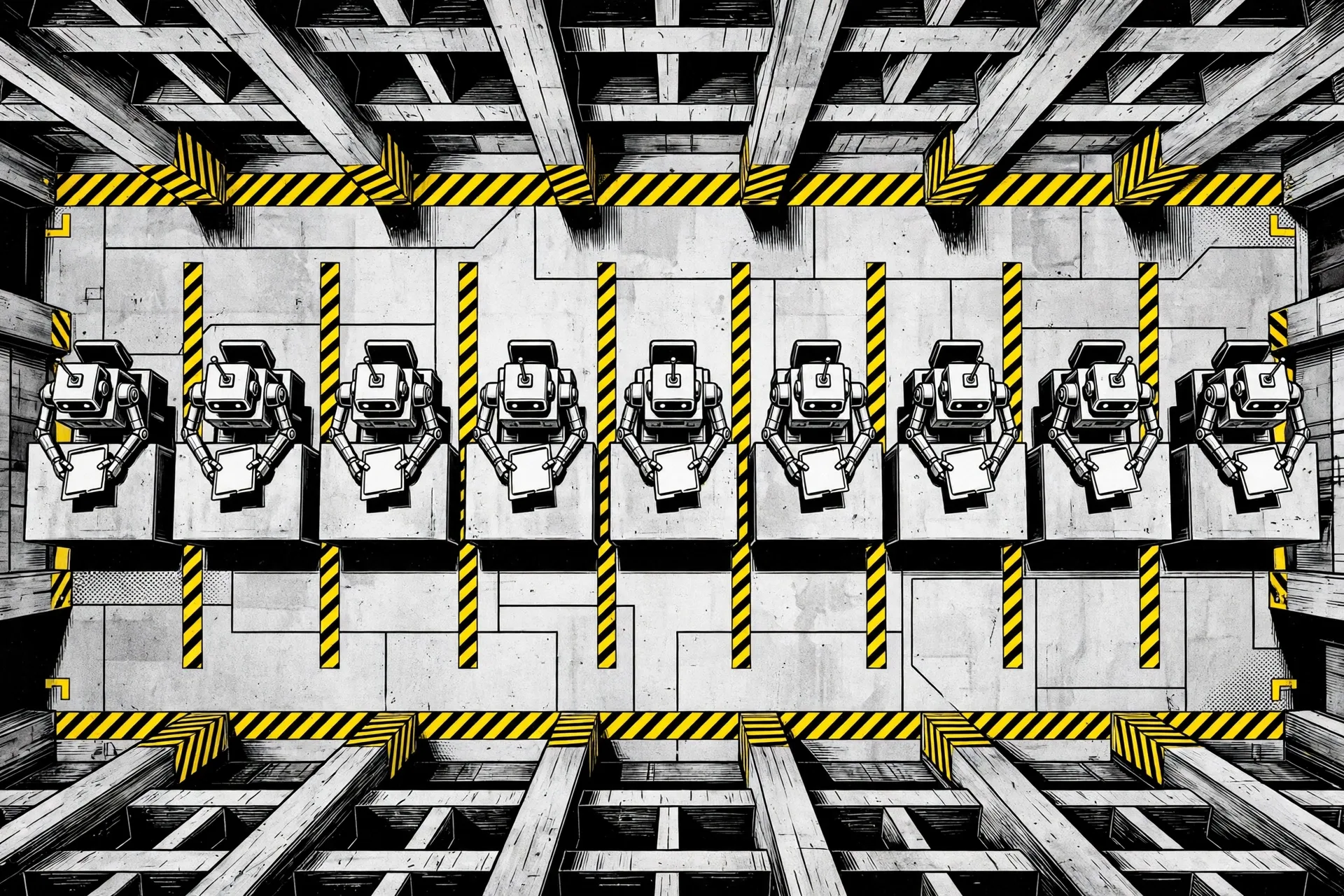 One agent per file, each working at the same time and none sharing a conversation. Illustration: Dirty Static
Before You Begin
Each agent that a workflow starts gets its own conversation. That agent cannot see the script and cannot see the other agents. This isolation is the design, and it has a plain consequence. The script must give each agent all of the context it needs, the exact task, and the shape of the result you want back. A vague prompt does not produce a vague answer from one agent. It produces vague answers from twenty agents at once.
Know the five building blocks before you read a script. phase(name) starts a named phase and groups the logs and agent cards under it. log(*args) adds a line to the phase. agent(prompt, schema, role, type_name, workspace, model) defines an agent. parallel(items, fn) runs a function for every item at the same time and returns results in item order, and if one item fails, the rest are canceled. pipeline(items, fn) runs items one at a time in order. await trajectory(...) brings earlier steps from your conversation into the script.
Step 1: Pick a Task That Splits Cleanly
Action: choose a task that breaks into items that do not depend on each other, or into stages with a clear order. Good first jobs include a review of each changed file, an audit of each package, or a test and fix loop for one bug at a time. Write the outcome in one sentence before you type the command.
Expected result: you can name the list of items, the work done on each item, and the result you want back for each one. If you cannot name those three things, the task is not ready for a workflow yet.
Step 2: Write the Prompt With the Controls Named
Action: in any conversation in the App or the CLI, type /run-workflow and then the task. Name the model tier, the result shape, and the workspace in the prompt when those choices matter. For the first job, use this prompt exactly, adjusting only the branch name if your main branch has a different name.
/run-workflow List the Python files changed since main, then review each file in parallel for unhandled exceptions using the flash model, and log a one-line verdict per file.
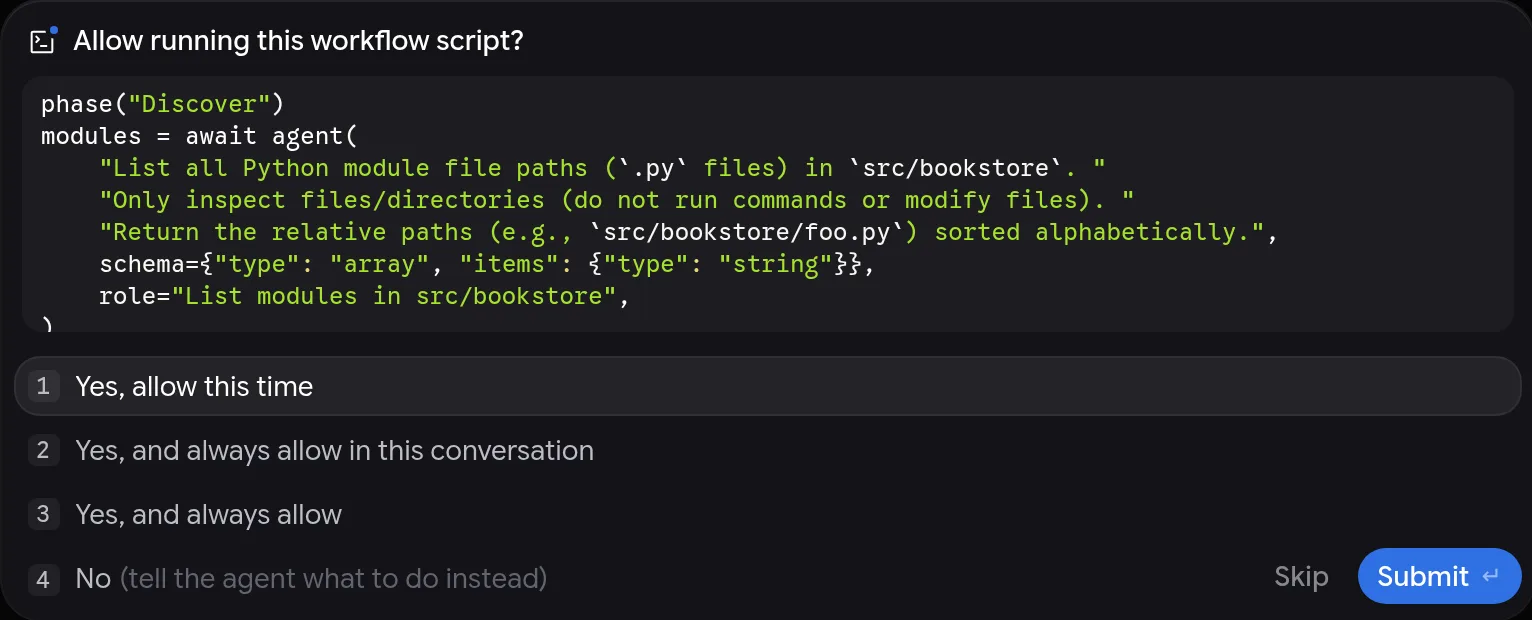
Expected result: the agent writes a Python script for the task and shows it to you in a prompt that asks, in the wording of the docs, Allow running this workflow script? Nothing runs yet. If your permission preset already allows scripts, such as the Turbo preset named in the docs, the script may run without that prompt, which is one more reason to set your preset with care before you start.
Step 3: Read the Generated Script Line by Line
Action: read the script before you approve it, and check five things in order. The phases match the stages you asked for. Each agent() call gives the agent its full context and task in the prompt text. Each schema matches the result you want, such as an array of strings for a list of paths or a plain string for a verdict. The model named for each agent fits the work, with flash_lite or flash for fast checks across many files and pro for work that needs deeper reasoning, per the docs. The workspace setting fits the risk, which for a review job means the default setting that uses your current workspace and writes nothing.
The script for the prompt in Step 2 should look close to this example from the official documentation. Code in a workflow script is data from the docs, shown here so you can compare it with what your agent generates.
phase("Discover")

files = await agent(
    "List the Python files changed since main. Paths only.",
    schema={"type": "array", "items": {"type": "string"}},
)

phase("Review")

# parallel() runs one agent per file at the same time.
# role titles each agent's card.

reviews = await parallel(
    files,
    lambda f: agent(
        f"Review {f} for unhandled exceptions. Reply with a one-line verdict.",
        schema={"type": "string"},
        role=f"Review {f}",
        model="flash",
    ),
)

for r in reviews:
    log(r)
Expected result: every line does what you expect, and nothing in the script reaches outside the task. If a line surprises you, choose No at the approval prompt and tell the agent what to change. The docs give that exact path. Deny, describe the change, and read the new script again.
Step 4: Approve the Script and Watch the Phases
Action: at the approval prompt, choose the option that allows the script this one time. While the workflow runs, expand the workflow step in your conversation. You should see one section per phase, the log lines for that phase, and one card per agent with its role and its state, such as running, waiting for your approval, or finished. Click an agent card to open that agent conversation in the side panel, where you can read its prompt, watch its tool calls, approve a pending request, or send it a message.
Expected result: the step title shows the current phase and how many agents have finished, in the form the docs give as workflow, the phase name, and a count such as 3 of 4 agents. The conversation shows that a task is running, and the workflow appears under Background Tasks in the Overview of the side panel. To stop a workflow early, stop the parent conversation. The docs state that stopping the parent also stops every running workflow agent.
Step 5: Read the Results Against the Schema
Action: when the script finishes, read the summary the main agent gives you, and then read the logged verdicts themselves. Each agent sent its result through a tool named finish, and that tool checks the result against the schema in the script before the script receives the parsed value. File reads, searches, and test output stay inside the agent conversations, so your main conversation stays clean even on a large job.
Expected result: you hold one verdict per changed file, in file order, because parallel() returns results in item order. A file with a clean verdict needs no action. A file with a problem verdict now has a named issue you can act on in Step 6 or in a normal conversation. If an agent failed, expect the rest of that parallel call to have been canceled, per the docs, and run the workflow again for the missing files rather than guessing their verdicts.
Step 6: Let Agents Edit Only in Branch Workspaces
Action: only after a review job has run clean, move to editing. In your prompt, ask for a branch workspace for each parallel agent. The docs name this setting workspace="branch", and it gives each agent its own isolated Git worktree, so agents can change files and run tests at the same time without overwriting each other. A prompt in the style of the docs example reads as follows.
/run-workflow For each package under packages/, start one agent in an isolated branch workspace to replace the deprecated request() helper with fetchJson(), run npm test in that package, and log a diff summary and the test result.
Expected result: each agent works in its own worktree, runs the tests for its own package, and logs a diff summary plus a test result. Review each diff yourself before any of that work joins your branch. A branch workspace isolates files. It does not judge whether a change is good, and that judgment stays with you. Our guide to sandboxed agent sessions covers the wider pattern of giving agents a bounded place to work.
Step 7: Save a Script That Works and Run It Again
Action: when a workflow does a job well, ask the agent to save the script to a .py file in your workspace. Later, run it again with a prompt that names the file, in the form the docs give.
/run-workflow Run scripts/review-changes.py
Expected result: Antigravity asks you to approve the script each time it runs, unless you have chosen to always allow it. Keep saved scripts under review with the rest of your code. A saved script that a team can read and rerun is the real gain here. The same audit runs the same way next month, and a new team member can read the script to learn how the audit works. The workflow runs in a separate process with the Python runtime that ships with Antigravity, so no local Python install is required, and you can set the ANTIGRAVITY_PYTHON environment variable if you need a different interpreter.
Verification
Run these checks after your first workflow and record the results. The approval prompt showed the full script before anything ran, or your permission preset is one you chose on purpose. The workflow step showed named phases, and the agent count reached the full count for the job. The results came back in item order and each result matched the schema you set. No file in your workspace changed during the review job, which you can confirm with git status in your repository.
Finish with the credit check. Count the agents the workflow started and note the model each one used. That count, times the calls each agent made, is what the job cost in plan credits. If the count is larger than the list of files you expected, your discovery phase found more items than you thought, and the script logs will show the list it worked from.
Troubleshooting
| Problem | Likely cause | Fix |
|---|---|---|
| No approval prompt appears | Your permission preset already allows workflow scripts | Check your permission settings and choose a preset that asks, if you want to read each script first |
| One agent fails and the rest stop | parallel() cancels the other items when one item fails, per the docs | Fix the cause for the failed item, then run the workflow again for the missing items |
| Verdicts come back vague or uneven | The agent prompt lacked context or the schema was too loose | Put the full context in each agent prompt and tighten the schema, then deny and regenerate the script |
| An agent waits and nothing moves | That agent has a pending approval request in its own conversation | Open the agent card, read the request in the side panel, and answer it there |
| Parallel edits clash | Agents shared one workspace while editing | Rerun the editing job with a branch workspace for each agent so each one gets its own Git worktree |
| A model name is rejected | The tier in the script is not available on your plan | Use a tier the error message lists as valid, such as flash or pro where available |
| Credits drain faster than expected | Many agents each making many model calls | Use flash_lite or flash for large checks, cut the item list, or switch staged work to pipeline() |
Next Steps
Take one recurring job from your own work and shape it as a workflow. A weekly review of changed files is a sound start, and so is an audit of each package before a release. Save the script, keep the first runs read only in effect, and widen what agents may do only after the results have earned trust across several runs.
If your next job needs agents to argue about an interface or check each other work as it lands, read the Antigravity docs on /swarm before you force that job into a workflow script. Scripts are for control flow you can state in advance. That limit is not a flaw in the tool. It is the reason the tool can be trusted with parallel work at all.
Sources
- Google Antigravity documentation, Dynamic Workflows (
/run-workflow), antigravity.google/docs/dynamic-workflows, checked November 14, 2026. The source for the workflow flow, the building blocks, the example script, the model and workspace options, the permissions, and the approval prompt screenshot used in this article. - Google Antigravity documentation, Slash commands, antigravity.google/docs/slash-commands, checked November 14, 2026. The source for Google AI Pro and Ultra availability for
/run-workflow. - Google Antigravity changelog, November 13, 2026 entry, antigravity.google/docs/changelog. The source for the ship date of Dynamic Workflows.
- AlphaSignal, Google Antigravity Ships Dynamic Workflows to Run Parallel AI Coding Agents, November 13, 2026. Launch coverage used for the note that workflows carry no separate price and use plan model credits.
- Image credit: the approval prompt screenshot in this article is from Google Antigravity documentation. The other images are Dirty Static illustrations.
END OF TRANSMISSION
Stay curious. Question everything.