
An agent cannot reliably tell trusted content apart from a hidden instruction. Microsoft makes that point at the start of its own documentation. A local agent runs with the privileges of the person using it, reads files, calls tools, and runs commands, so one injected instruction can be enough to copy data out, change code, or run a command nobody approved.
Defender for Endpoint runtime protection is built for that exact gap. It inspects points in the agent loop where content enters or leaves the reasoning of the agent, and it can audit the action or block it before it runs. This tutorial turns the feature on in the order Microsoft recommends, audit first and block later, and it claims no test run on a live tenant. The Verification section tells you how to confirm the result on your own device.
What You Will Build or Learn
You will end with runtime protection enabled on a Windows device, with a clear choice made for each inspection method. Agent native event inspection covers agents that expose vendor supported event interfaces, such as Claude Code, Codex CLI, and GitHub Copilot CLI. Network inspection covers agent to model network flows for agents that do not expose those interfaces.
You will also know how the three modes differ, how to roll the same settings out through Intune or the Defender portal, and what a detection looks like for the person using the agent and for a security team. The point is not just a switch set to on. The point is a rollout you can trust, because you watched audit mode before you enforced block mode.
 Prompt, tool call, and tool reply. Defender inspects the points where content moves through the agent loop. Illustration: Dirty Static
Before You Begin
This feature is in preview. Microsoft warns that some information in its documentation relates to a prereleased product that may change before release. Treat settings, names, and coverage as preview facts and check the support matrix for your agent before you promise coverage to anyone.
Decide about prompt evidence collection before you enable it. When it is on, prompt data and tool calls, including their arguments, are sent to the cloud in original form, without redaction, and captured content can appear in security alerts. Microsoft tells organisations to review their privacy and data handling requirements first. Collection is a separate choice from runtime protection itself, and turning collection off does not turn protection off.
Know two preview limits before you rely on a block message. In audit mode, an alert title may say an action was blocked when it was not, because audit mode allows the action to continue. In block mode, Claude Code might continue processing a tool response even when Defender reports a block for that response, and inspection after a tool runs cannot undo what the tool already did. Read the alert details and the device mode, never the title alone.
Step 1: Check the Device Is Ready
Action: confirm the device is onboarded to Defender for Endpoint, Defender Antivirus is in active mode with real time protection on, and updates are current. Then open an elevated PowerShell session, meaning a window opened with Run as administrator, and check the signature version. Microsoft requires AntivirusSignatureVersion 1.451.224.0 or later for the single device steps.
```powershell
Get-MpComputerStatus | Select-Object AntivirusSignatureVersion
```
Expected result: the version shown is 1.451.224.0 or later. If it is lower, update Defender first and check again. Do not skip this gate and then wonder why the later settings do not behave as documented.
Step 2: Choose an Inspection Method for Each Agent
Action: list the agents in use on the device and match each one to a method. Use agent native event inspection when the agent exposes a vendor supported event interface. Microsoft names Claude Code, Codex CLI, and GitHub Copilot CLI as examples of agents that expose these interfaces. Use network inspection when you want to protect an agent that talks to a model service over the network but does not expose that interface.
Expected result: every agent you care about has a planned method, or a noted gap. Network inspection does not support agents that use certificate pinning or HTTP/3, so an agent using either one is a coverage gap to record, not a setting to force. Check the Microsoft support matrix for coverage by agent, mode, method, and minimum version before you widen the rollout.
Step 3: Enable Audit Mode on One Device
Action: in the same elevated PowerShell session, set each method you need to Audit. Replace the word Audit only when you reach Step 6 and enforcement is earned. You can enable one method or both, and you configure each one on its own.
```powershell
Set-MpPreference -AiAgentProtection Audit
Set-MpPreference -AiAgentNetworkInspection Audit
```
Expected result: the commands complete with no error. Audit mode will detect and report prompt injection while allowing the action to continue, and Defender will still raise an alert for investigation. That behaviour is intentional at this stage.
Step 4: Verify the Settings Took Effect
Action: read the settings back in PowerShell.
```powershell
Get-MpPreference | Select-Object AiAgentProtection, AiAgentNetworkInspection
```
Expected result: both values read as 2, which means Audit. Microsoft documents the values as 0 for Disabled, 1 for Block, and 2 for Audit. Then close the PowerShell window and any terminal windows used to run agents, and open a new terminal window before starting the agent again. Microsoft includes that restart step in its own procedure, so do not test in a terminal that was open before the change.
Step 5: Decide Prompt Evidence Collection on Purpose
Action: check the platform and engine versions first, because prompt evidence collection requires the October 2026 Defender Antivirus platform and engine updates or later, platform version family 4.18.26100.x and engine version family 1.1.26100.x. Then set collection only if your organisation has approved sending unredacted prompt data and tool call arguments to the cloud for detection and investigation.
```powershell
Get-MpComputerStatus | Select-Object AMProductVersion, AMEngineVersion
Set-MpPreference -PromptEvidenceCollection $true
```
Expected result: the versions meet the October 2026 families or later, and the setting reflects a deliberate privacy decision. To turn collection off, run the same command with $false in place of $true. A setting applied by managed policy takes precedence over a local PowerShell preference, so a local change may not remove a policy value.
Step 6: Review Alerts, Then Move to Block Mode
Action: monitor alerts in the Microsoft Defender portal for one to two weeks, as Microsoft recommends. Classify inaccurate alerts as false positives, and if a file was wrongly identified as malicious, submit that file to Microsoft for analysis through the route the documentation names. When the alerts on a device group look accurate and actionable, switch that group to Block by setting the same preferences to Block.
```powershell
Set-MpPreference -AiAgentProtection Block
Set-MpPreference -AiAgentNetworkInspection Block
```
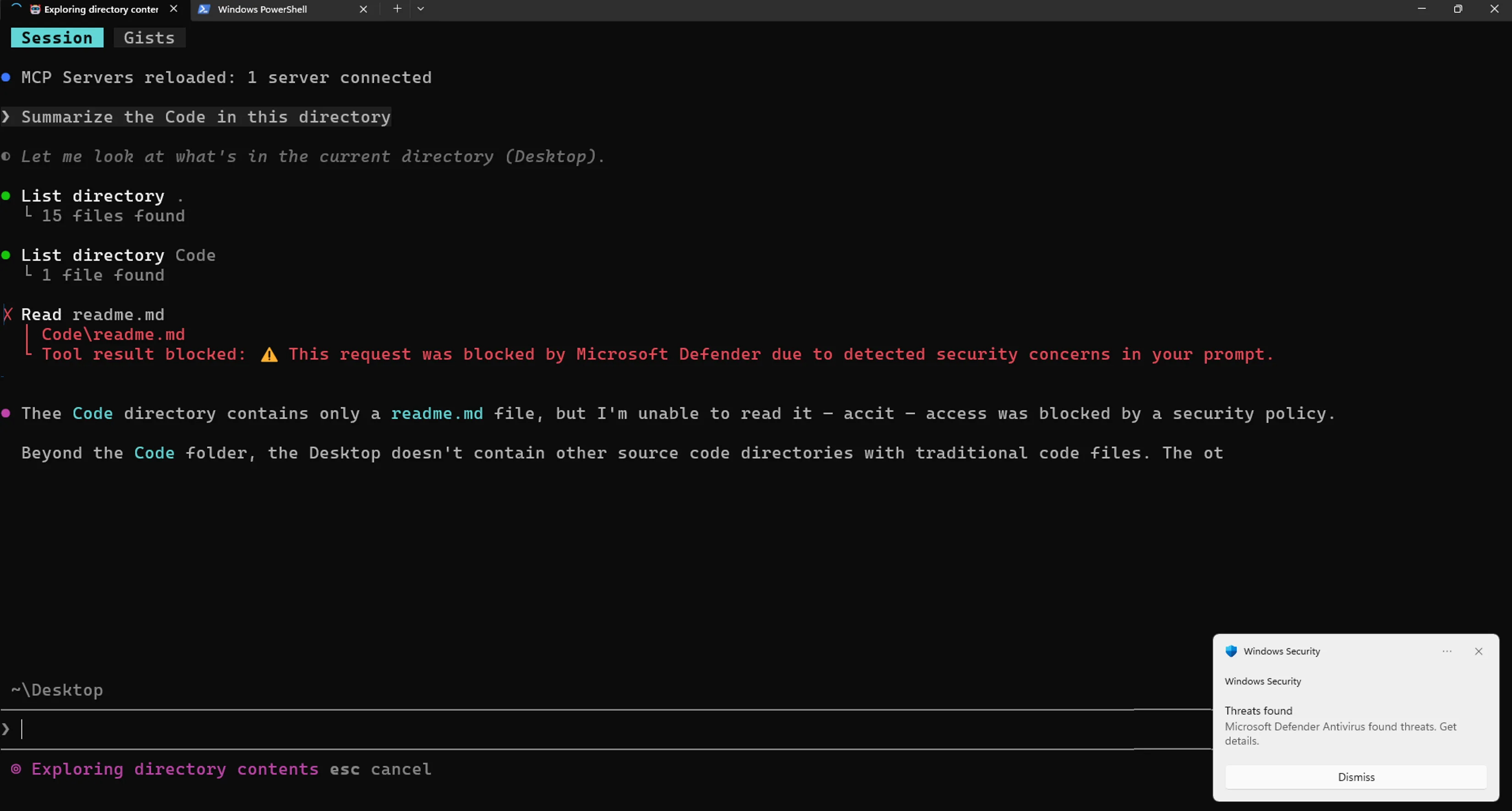
Expected result: in block mode, Defender blocks the threat at supported inspection points, notifies the user in the agent interface and through a Windows toast when notifications allow it, records the detection in protection history on the device, and sends an alert that is correlated into incidents for investigation. In block mode the alert severity can be Critical, High, Medium, or Low based on assessed risk. In audit mode the alert is Informational.
Step 7: Roll Out Through Intune or the Defender Portal
Action: for organisation wide deployment, Microsoft recommends Intune. In Intune, create an endpoint security Antivirus policy for Windows and select the Microsoft Defender AI agent runtime protection profile. Set Ai Agent Protection, Ai Agent Network Inspection, and Prompt Evidence Collection on the Configuration settings page, assign the policy in audit mode to a limited device group first, and move to block mode only after review.
If your organisation manages endpoint security policies in the Defender portal, use the Microsoft Defender AI agent runtime protection template there instead, with the same three settings and the same audit first order. For devices managed through Defender for Endpoint security settings management and not enrolled in Intune, assign the policy to Microsoft Entra device groups, because user targeting is not supported for those devices.
Expected result: after the policy applies, open the device page in the Defender portal, open the Configuration management tab, select Effective settings, and confirm the values and their configuration sources match what you assigned. Close agent terminals and open a new one before testing, just as on a single device.
Verification
Run the checks in this order. First, read the local settings back and confirm the numeric values match the mode you intended, 2 for Audit or 1 for Block. Second, confirm the policy view in the Defender portal shows the same effective values when you deployed through policy. Third, run the AI agent runtime protection demonstration that Microsoft links from its setup guide, which uses a benign prompt injection test string, and confirm Defender detects it.
When a real detection occurs, the alert is named Suspicious AI prompt injection. It appears on the device timeline, related alerts are correlated into incidents, and selecting an alert shows the detection type, severity, affected agent, process tree details, and recommended actions. The person using the agent can also review detections under Windows Security, then Virus and threat protection, then Protection history, where the threat name, severity, affected agent, and remediation status are shown.
Troubleshooting
| Problem | Likely cause | Fix |
|---|---|---|
| Settings do not appear or do not apply | Signature, platform, or engine updates are behind the documented minimums | Update Defender, check AntivirusSignatureVersion is 1.451.224.0 or later, and check the platform and engine families for prompt evidence collection |
| An alert says blocked in audit mode | Preview alert reporting issue documented by Microsoft | Check the mode on the device. Audit mode allows the action and records the detection, so the title alone does not prove a block |
| A tool reply seems processed after a reported block in Claude Code | Preview blocking limit documented by Microsoft for responses after a tool runs | Investigate the detection as if the content may have been processed, and do not rely on the alert title alone |
| One agent gets no detections at all | The agent may not expose an event interface, or its network path may use certificate pinning or HTTP/3 | Check the support matrix for that agent and method, and record the gap if the agent is not covered |
| A local PowerShell change has no effect | A managed policy takes precedence over a local preference | Check Effective settings on the device page and change the policy, not only the local value |
| The agent behaves as if nothing changed | Agent terminals were open before the setting changed | Close every terminal used to run agents and open a new window before starting the agent |
Next Steps
Widen the rollout in stages, audit first on each new device group, and keep the false positive notes from the first group close at hand. They will save time on every group after it. Pair this runtime work with agent discovery in Defender, so you know which agents and configured MCP servers are actually present on your devices before you judge coverage.
Revisit the support matrix and the known issues page as the preview moves. Coverage by agent and method will change, and a limit that matters today may be fixed or replaced. When block mode is stable on your main groups, write down who owns Suspicious AI prompt injection alerts and how fast they get reviewed. A control nobody watches is a setting, not a defence.
Sources
- Microsoft Learn, AI Agent Runtime Protection with Microsoft Defender for Endpoint (Preview), overview of what runtime protection detects, the two inspection methods, mode behaviour, prompt evidence collection, and known issues.
- Microsoft Learn, Set up AI agent runtime protection with Microsoft Defender for Endpoint (Preview), prerequisites, PowerShell commands, Intune and Defender portal deployment, and alert investigation.
- Microsoft Learn, Microsoft Defender for Endpoint AI agent support matrix, linked from the overview for coverage by agent, mode, method, and minimum version.
END OF TRANSMISSION
Stay curious. Question everything.