
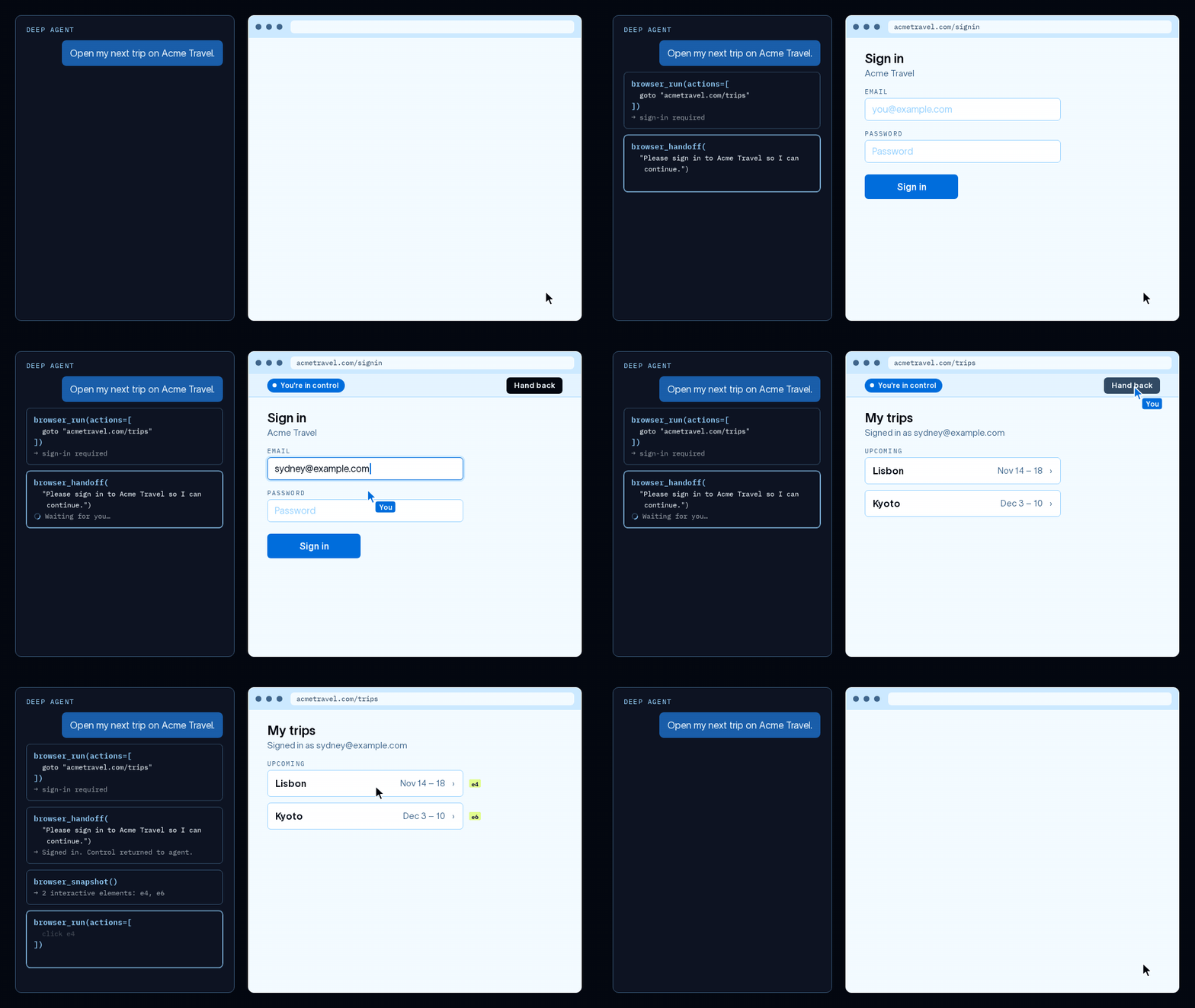
LangChain Managed Deep Agents v0.10 adds a hosted browser the agent drives itself and a handoff that gives a person the window at a login wall. This tutorial scaffolds a Python agent, declares the browser in browser.py, sets thread and user scope, and walks the handoff from request to Hand back.
A password pasted into chat stops being a password. It lands in messages, in traces, and in every system that stores them. Managed Deep Agents takes the other route. The agent gets a hosted browser in its own LangSmith sandbox, drives pages with four tools the platform adds for it, and hands the window to a person when a login wall, a CAPTCHA, or a two factor check appears. The person signs in on the site itself. The agent never sees the credential.
Browser use arrived in Managed Deep Agents v0.10, put into public beta on October 29, 2026. The docs cover two jobs for it: work on sites with no usable API, such as a reservation flow, and testing an app through its own interface after a code change. LangChain says its browser tools passed 90 percent of 100 WebVoyager tasks for $1.98 in total. That is a company claim from its own testing, not a promise about your sites. This tutorial builds the setup in Python and proves the handoff with a task you choose.
What You Will Build or Learn
You will end with a deployed Managed Deep Agent that can navigate, click, fill forms, and inspect pages on its own. You will know how to turn the browser on with one file, how to choose who shares a login, and how to take the window back, sign in yourself, and return control so the agent picks up where it stopped.
The browser is not a local window and nothing runs on your machine. Managed Deep Agents runs it remotely, in a sandbox apart from the agent sandbox, and attaches its tools when it finds your declaration. Screenshots belong to the same tool set, and saving a screenshot file needs an agent sandbox, while browsing itself does not.
Before You Begin
Pick a low stakes site for the first run. Use a test account where the site offers one, and a task you can afford to repeat. A browser agent can click the wrong control on a page it has misread, and a booking or a purchase made in the wrong thread is still a booking or a purchase.
Scope is a sharing decision, so make it before you start. Thread scope keeps one login inside one conversation. User scope carries one person and their logins across all of that person and their conversations, which is convenient and belongs in your data policy if other people will use the agent.
Step 1: Scaffold the Project
Action: create the project with the mda CLI from the managed-deepagents package, then move into the new folder.
uvx --from managed-deepagents mda init browser-agent
cd browser-agent
Expected result: the CLI creates the project scaffolding for a Python Managed Deep Agent in the browser-agent folder. Every later file in this tutorial goes inside that project, and the browser declaration in Step 3 goes at its root.
Step 2: Add Your Keys and Set the Instructions
Action: open the .env file in the project root and add your model provider key and your LangSmith key as placeholders here, then replace them with your real values on your own machine only.
OPENAI_API_KEY=your-model-provider-key
LANGSMITH_API_KEY=your-langsmith-api-key
The quickstart uses OpenAI by default. For Anthropic, Google, or Microsoft Foundry, set the matching provider values instead. Your LangSmith key comes from Settings, then API Keys, then Create API Key in LangSmith. Do not commit the .env file to version control.
Next, open instructions.md and tell the agent how to treat a login wall. Add a plain rule in your own words along these lines:
When a site needs a login, a CAPTCHA, or two factor authentication, request a browser handoff and explain why you need it. Never ask me to paste a password or a code into chat.
Expected result: the project has both keys in .env, and its instructions name the handoff as the route past a login wall. When you deploy, Managed Deep Agents syncs the instructions to LangSmith Context Hub, where you can update them without a redeploy.
Step 3: Declare the Browser at the Project Root
Action: create a file named browser.py at the project root, beside agent.py, with this exact content for v0.10:
from managed_deepagents import define_browser

browser = define_browser(scope="thread", idle_ttl_seconds=600)
Expected result: the CLI discovers the root file and Managed Deep Agents adds four tools to the agent on its own: browser_snapshot reads the page accessibility tree and labels elements with IDs, browser_run navigates and interacts through JavaScript or batches of actions against those IDs, browser_screenshot captures the page, and browser_handoff gives a person control of the window. Put the declaration nowhere else. The docs are blunt on this point: a declaration inside a browser/ or sandbox/ folder does not enable browser support.
Two options do the real work in that one call:
| Option | Default | What it controls |
|---|---|---|
scope | "thread" | Who shares the browser and its logins |
idle_ttl_seconds | 600 | Seconds without activity before the browser stops; the docs accept 60 through 86400 |
Choose the scope by the job, not by habit:
| Scope | Browser state | Use it for |
|---|---|---|
"thread" | One browser per conversation, shared by authorized participants across its turns, with no cookies or logins from other threads | Testing an app change in one conversation, or any task where a login should stay put |
"user" | One browser per authenticated person, with a separate window for each thread and cookies and logins shared across that person and their threads | Reusing a site login across conversations, so the agent asks for a sign in once |
To use user scope, change one word in the same file:
browser = define_browser(scope="user", idle_ttl_seconds=600)
Shared login state is not account isolation. In user scope, a logout or an account switch in one thread can affect that person and their other threads, so coordinate bookings and purchases across conversations. Finishing a run releases the client, not the login; the idle timeout stops the browser rather than signing it out, and a site can still expire the session on its own side.
Step 4: Run Locally and Send a Browser Task
Action: install the project dependencies and start the agent in LangSmith Studio.
uv sync
uv run mda dev
Expected result: mda dev loads the keys from .env, starts a local Agent Server, and opens the agent in Studio. Now send a task that needs the browser and will hit a login on purpose, using your own test site and test account:
Go to the site I name in this thread and complete the task I describe. If the site asks for a login, a CAPTCHA, or two factor authentication, hand the browser to me and explain why.
Expected result: in the Studio trace, the agent calls the browser tools instead of guessing at page content. It takes a snapshot to read the page structure, runs actions against the snapshot IDs, and stops at the login wall rather than typing around it. Take a fresh snapshot after each navigation in your own prompts and tests, because element IDs go stale as pages change.
Step 5: Take the Handoff and Hand the Window Back
Action: when the agent needs you, it calls browser_handoff(reason) and gives you control of its thread browser window. Work the handoff in this order:
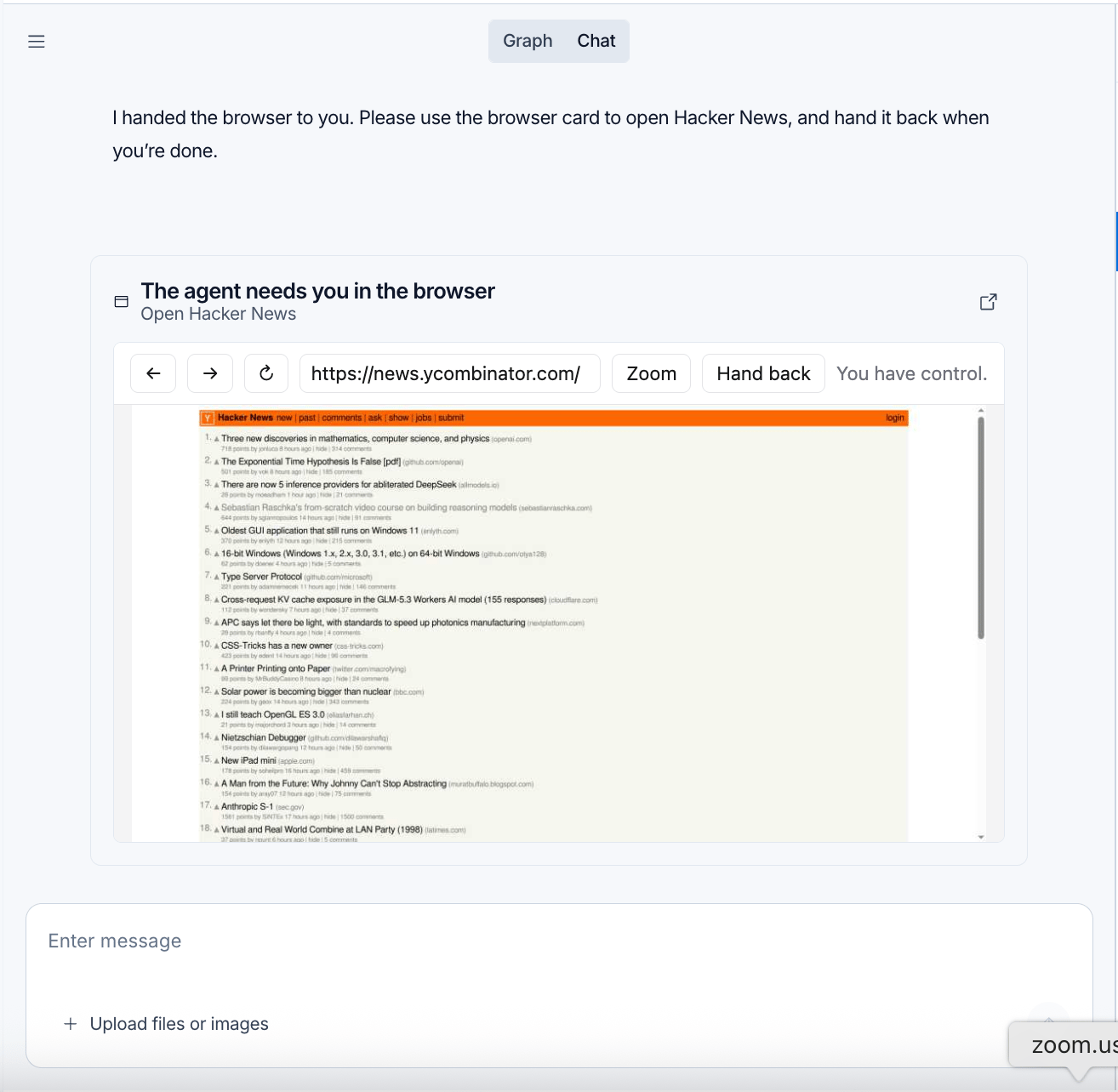
- Read the reason on the handoff card. In Studio the card reads The agent needs you in the browser and embeds the browser, with an option to open it in a new tab. Channels such as Slack render a link to the same remote browser, and a custom client must render the handoff artifact to show either form.
- Sign in inside that window, on the site itself. Enter credentials directly on the website, not in chat, and finish every authentication step the site asks for, including a CAPTCHA or a two factor check.
- Click Hand back in the browser window when you finish.
Expected result: the agent gets a notice that control returned, inspects the current page to check whether the login worked, and continues the task in the now signed in browser. While you hold the window, the agent and its browser tools cannot act on it. The handoff call returns at once, so the agent can do other work while it waits. The link expires after 15 minutes; expiry ends the handoff and proves nothing about the task itself. Asking for a new handoff replaces the old link.
Step 6: Deploy the Agent
Action: deploy the same project to LangSmith.
uv run mda deploy
Expected result: Managed Deep Agents packages the project and runs it as a hosted deployment on LangSmith Agent Server. When the deploy finishes, the CLI prints the deployment dashboard URL. Open it, confirm the deployment shows a ready state, and send the same browser task from Step 4 in the hosted agent. Keep the root browser.py file in place for every deploy. It enables browser support and installs the deployment browser dependencies, and no later setting can add a browser without it.
One run level option is worth knowing. In a graph factory you can set browser for a single run to choose a different scope or idle timeout, and you pass a browser definition, not a middleware instance. To turn the browser off for one run, pass browser=None in Python or browser: null in TypeScript. Static agent definitions keep their browser setting in the declaration file from Step 3.
Verification
Run these checks in Studio and count the build as working only when all four pass.
First, the trace shows real browser work. The agent calls browser_snapshot and browser_run for the task, not a plain text fetch of the page. Second, the handoff fires at the right moment. At the login wall a card or link appears with a reason, and no password or code from you appears anywhere in the chat or the trace. Third, the resume works. After Hand back, the agent inspects the page, reports the signed in state it finds, and finishes the task in the same thread. Fourth, the scope matches your choice. Start a new thread and ask for the same site: in thread scope the agent starts with no login and asks for a fresh handoff, and in user scope the same person and their new window can reuse the login.
Troubleshooting
| Problem | Likely cause | Fix |
|---|---|---|
| No browser tools appear in the trace | browser.py sits in the wrong folder, or the named browser export is missing | Move the file to the project root, keep the named export from Step 3, and run uv run mda dev again |
| The handoff link has expired | The 15 minute window passed before sign in finished | Ask the agent for a new handoff; the new request replaces the old link |
| The agent does not resume after Hand back | A separate approval in the conversation is still waiting, or the agent missed the notice | Complete the waiting approval first; if the agent still sits idle, send it a new message in the same thread |
| A login never carries into a new conversation | The browser runs in thread scope | Change scope to "user" in browser.py when cross thread reuse is what you want, and redeploy |
| A login leaks across work you wanted apart | The browser runs in user scope, so threads share cookies and logins | Return to "thread" scope for isolated work, and treat each thread as its own session |
| Actions fail or point at the wrong element | Snapshot IDs went stale after the page changed | Take a new browser_snapshot after navigation and run actions against the fresh IDs |
| A screenshot will not save to a file | Saving screenshot files needs an agent sandbox, while browsing alone does not | Keep the project sandbox in place, or use screenshots in the reply without a saved path |
Next Steps
Point the same build at app testing, the second job the docs name for browser use. A private connection can bridge the browser and agent sandboxes, so the agent can start an app in its own sandbox and drive it through the browser without a public URL for the app. Keep thread scope for that work, so each test conversation gets an isolated browser and a clean login state.
Tune the two numbers you now own before you share the agent. Raise idle_ttl_seconds for long tasks with slow human steps, and lower it for short tasks where a lingering signed in browser is pure risk. When other people start using the agent, write the scope choice and its login sharing into the notes you give them, in plain words, before the first handoff surprises them.
Steps, commands, scope rules, and handoff behaviour checked against the LangChain documentation for Managed Deep Agents browser use and the Python quickstart, October 2026. This procedure was verified against those documents; it was not run end to end against a live LangSmith deployment in this run, so do the first pass with a test account as written.
Sources
- Screenshots: LangChain
END OF TRANSMISSION
Stay curious. Question everything.