Every series of AI pictures has the same failure point. Picture one gives you a mascot you love. Picture two gives you a near twin. By picture four, the face has drifted, the markings have moved, and the cast needs a family tree to explain itself. Saved references in ChatGPT Images 2.6 attack that drift at the root. You save one photo once, give it a name, and call the same character back by name in later chats.
The feature arrived with Images 2.6, which OpenAI released on November 4, 2026. The launch post talks about speed and about keeping characters, products and brand details consistent as you edit. The saved reference steps themselves live in the OpenAI Help Center, in the article on images in ChatGPT. This tutorial follows that help article, checked on November 10, 2026, and it claims no test run of its own. The Verification section below tells you how to judge the character you get.
What You Will Build or Learn
You will end with one saved character and a small series of pictures that use that character: a portrait, one action scene and one scene in a new style. The character can be a pet, a mascot you drew, a product or a person. The method is the same in each case, because the saved photo does the identity work and each prompt does only the scene work.
That split is the whole lesson. Before saved references, each new chat started from zero and each prompt had to describe the character all over again, with drift built into the process. Now the description burden drops. Our Tools profile of ChatGPT Images 2.6 and its GIF work covers the wider release. This tutorial stays on the one feature that makes a series possible.
Before You Begin
Choose the photo with care, because every later picture will lean on it. Use one clear photo where the face is fully visible, the light is even and no second subject crowds the frame. For a character you invented, generate the character first, pick the version you like best and save that picture as the reference. Five mixed photos can pull a face in five directions. One good photo gives the model one answer to match.
Keep a short written list of the traits that define your character before you start. Note the face shape, the hair or fur, any markings, and one or two items the character always wears. That list becomes your score sheet in the Verification section, and it turns a vague feeling that a scene looks off into a named fault you can fix.
Step 1: Save the Photo as a Reference
Action: open a new chat in ChatGPT, upload the photo you chose, and ask ChatGPT to save it as a reference. Give the name in the same message. Use a short name with no spaces, because you will type it after @ again and again.
Save this photo as a reference. Name it Pepper. I will write @Pepper in later chats when I want this exact character in a new picture.
Expected result: ChatGPT saves the photo under the name you chose, ready for use in later chats. The Help Center adds that ChatGPT may also offer to save a photo when you describe it, for example as a picture of your dog. If that offer appears, take the same care with the name instead of accepting the first name that comes to mind.
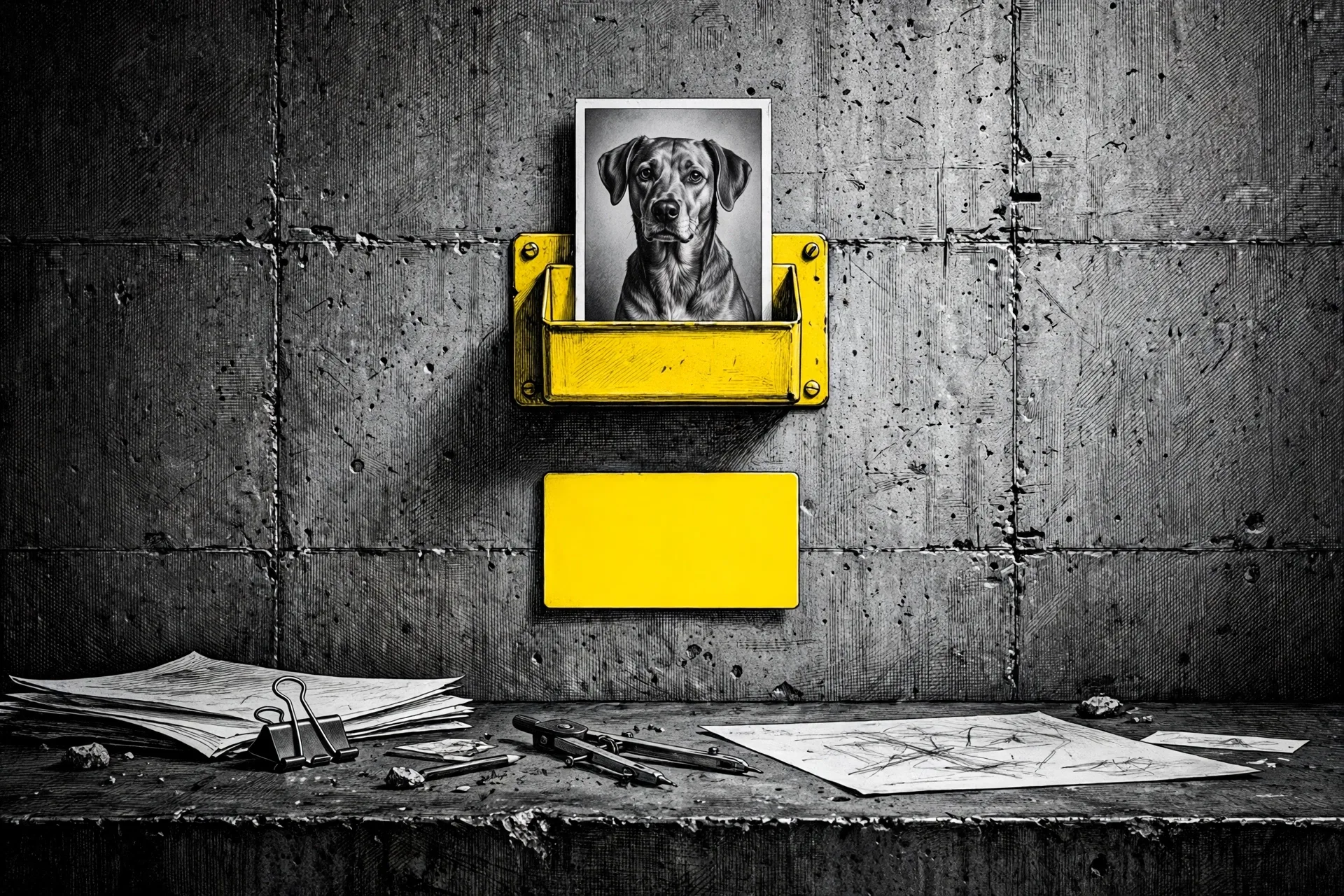 One photo, one name, filed once. The save is the step that replaces uploading the same picture in every new chat. Generated illustration in the Dirty Static house style.
Step 2: Test the Reference in a New Chat
Action: close that chat and open a different new chat. Do not upload the photo again. Type @ followed by the saved name in a simple first request. OpenAI gives this exact shape in its help article, with a dog named Pepper as the example.
Make a watercolor portrait of @Pepper.
Expected result: ChatGPT draws the saved character in the new style, with no upload from you in this chat. That result is the proof that matters. A character that only survives inside one chat is just chat memory. A character that answers its name in a fresh chat is a saved reference, and a series can start.
Step 3: Build a Series, One Scene at a Time
Action: stay with @name prompts and change one scene at a time. In each prompt, name the character, describe the new scene and the style, and state the traits that must stay as they are. Describe the scene in detail and the character hardly at all. The reference already carries the character.
Draw @Pepper sitting in a cardboard boat on a pond. Cartoon style, square format. Keep the face, the ears and the chest marking exactly as saved.
Expected result: a new scene with the same character inside it. Repeat the pattern for the rest of your series, one scene per prompt, and judge each picture before you ask for the next one. A series built in a rush hides drift until the last picture, when the fix costs the most. Our tutorial on editing files inside Gemini chat teaches the same habit in a different app: judge the draft before you build on it.
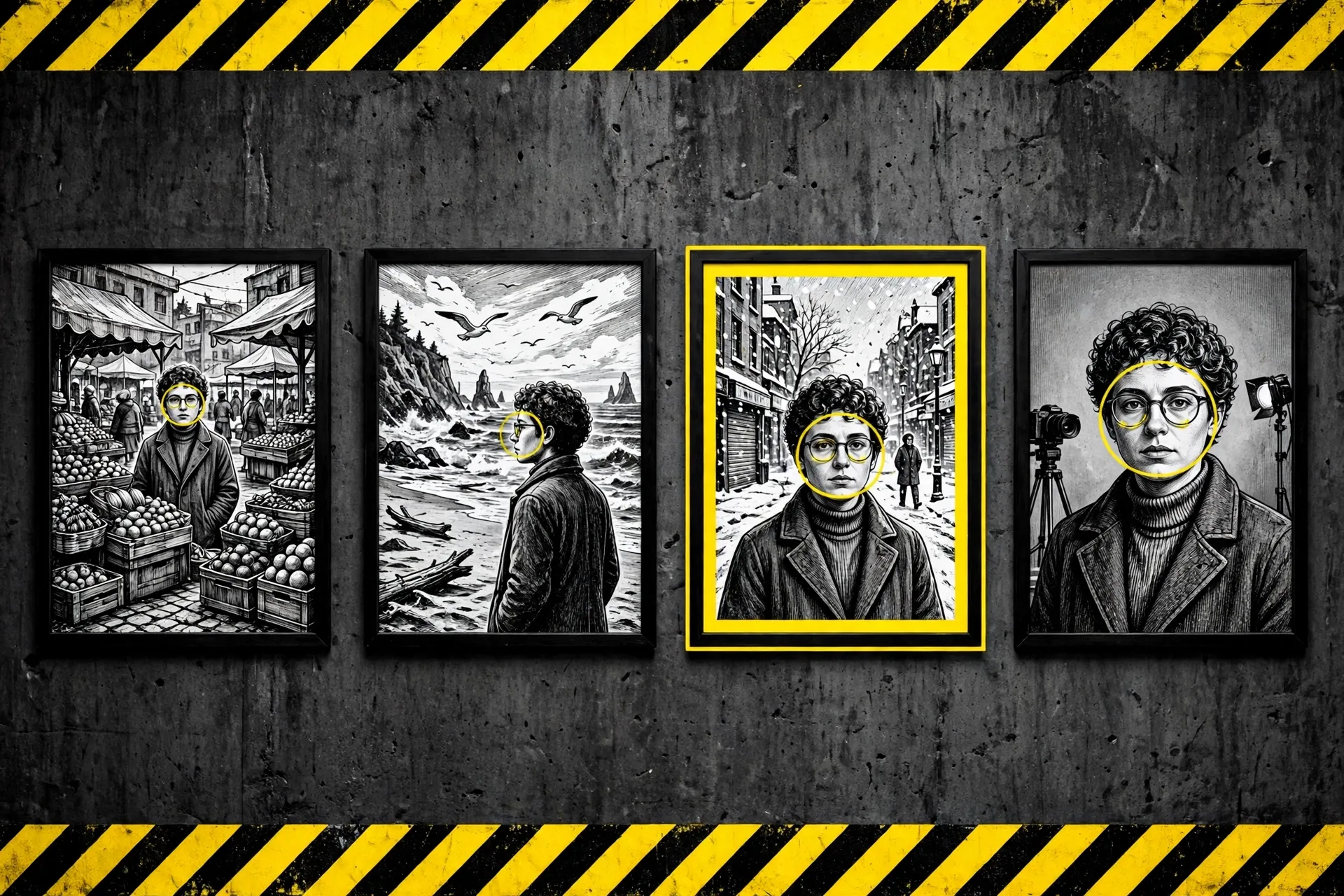 The series test. The scenes change, the face does not. Judge each frame against the saved photo, not against the frame before it. Generated illustration in the Dirty Static house style.
Step 4: Fix Drift With a Targeted Edit
Action: when a trait drifts, do not start the scene again. Select the picture and describe the one change you want in the conversation, or use the selection tool to mark the area first and then describe the edit. Name the fault, name what must stay untouched, and stop there.
Fix only the chest marking. It should match the saved reference. Change nothing else in this picture.
Expected result: an edit round that repairs the named fault and leaves the rest of the scene alone. OpenAI claims Images 2.6 holds details with more consistency from one edit to the next, and that claim is the company view, not a promise about your picture. Small requests give that claim its best chance. A request that rewrites the scene, the style and the outfit in one breath invites a new face to walk in with the changes.
Step 5: Reuse the Same Reference for a New Format
Action: once the still series holds together, reuse the same @name for a new format instead of saving a second version of the character. Ask for a poster, a profile picture in a new style, or a looping GIF of the character. For a GIF, the Help Center route is to ask for a looping GIF and describe what should move.
Make a looping GIF of @Pepper. Pepper blinks once and tilts the head. Keep the face exactly as saved.
Expected result: the same character in the new format, drawn from the same saved photo. One caution from the Help Center: GIF creation is still rolling out in ChatGPT, so your account may return stills for now. The still series you built in Steps 2 to 4 works either way, and it gives the GIF a checked character to animate when the feature reaches you. ChatGPT cannot edit an animated GIF you upload, so build loops from your saved character inside ChatGPT rather than bringing a finished loop from elsewhere.
Verification
Run three checks before you call the series done. First, repeat the Step 2 test cold: open a new chat, write only the @name request, and confirm the character that arrives matches the saved photo. Second, lay your trait list beside each scene in turn and mark each trait as kept or drifted. Face, markings and the items the character always wears all have to pass in every scene you plan to publish.
Third, open the Images section in ChatGPT. The Help Center says every image you create is saved there automatically, so your full series should sit in one place for review. Download the keepers from there with the Save control on each image. A series that passes in the chat and reads as one character in the Images grid is a series you can ship.
Troubleshooting
| Problem | Likely cause | Fix |
|---|---|---|
| @name brings up no character | The name in the prompt differs from the saved name, or the save never completed | Return to the chat where you saved the photo, check the exact name, save the reference again if you must, then repeat the new chat test. |
| The character changes from scene to scene | The reference photo was unclear or crowded, or a prompt rewrote too much at once | Save a clearer photo with one subject and a fully visible face, then change one scene element per prompt. |
| One trait keeps moving or vanishing | The prompt never named that trait as fixed | Add the trait to the fixed list in each prompt and fix it with the targeted edit in Step 4. |
| A GIF request returns a still picture | GIF creation is still rolling out, per the Help Center | Keep building the still series and try the GIF again later. The feature may not have reached your account yet. |
| You cannot find a way to remove a saved reference | The Help Center article, checked November 10, 2026, describes saving and using a reference but not listing or deleting one | Do not assume that deleting a chat removes the reference. The Help Center rule about deleting the conversation applies to images in My images. Check the current help article before you rely on any removal route. |
| ChatGPT offers to save a photo on its own | The Help Center says ChatGPT may offer when you describe a photo | Treat the offer as a real save, not a suggestion. Decline it, or choose the name with the same care as in Step 1. |
Next Steps
Grow the cast with intent. Save a second character only when a project needs one, give it a name that cannot collide with the first, and test it cold in a new chat before the two characters share a scene. A small cast with checked references beats a crowd of names you half remember.
When the series wants motion beyond a loop, move to video and keep the same discipline: one character, one scene, judged frame by frame. The Gemini Omni video tutorial shows that route. And when a still series is the goal, stop at the set that passes your trait list. More scenes will not fix a weak reference. A better photo will.
Sources
- OpenAI Help Center, Images in ChatGPT. The saved reference steps, the @Pepper example, availability on all tiers and on web, iOS and Android, the Images library, the editor routes and the note that GIF creation is rolling out. Checked November 10, 2026.
- OpenAI, Introducing Images 2.6, November 4, 2026. Release date, global availability with no paid plan needed, and the company claims on speed and on keeping characters, products and brand details consistent across edits. The launch post does not describe the saved reference steps; those come from the Help Center above.
- Codearia Academy, ChatGPT Images 2.6: GIFs and saved references, how to, November 2026. Secondary walkthrough used only for practical photo choice advice.
- All images in this article are generated illustrations in the Dirty Static house style. No image here is a screenshot of ChatGPT.
- Facts checked November 10, 2026.
END OF TRANSMISSION
Stay curious. Question everything.