Google says the XCPE backdoor shipped inside the firmware of more than 1.3 million Android TV boxes and still sits there after the takedown. This tutorial audits one box end to end: record its exact model, cross check the published model list, hunt for the five package names Google named, test the Play Protect setting the backdoor switches off, confirm the package list over ADB, and read the verdict table that says what each result means.
Start with the remote in your hand and the box still plugged in. You are not cleaning anything yet. You are building a record, one check at a time, so the verdict at the end rests on evidence from your own box and not on a brand name or a price tag. Our report on the takedown covers who built XCPE and how Google and its partners cut its control servers in late October. This tutorial covers the box under your television.
What You Will Build or Learn
You will end with a written verdict for one specific box. The verdict is one of three readings. Confirmed means a package name Google published as part of XCPE is present on your box. Suspect means weaker signs agree with each other, such as a model name on the published list plus a protection setting found switched off. No evidence found means every check came back clean, which lowers suspicion and never proves a box safe.
The facts the audit rests on come from Google Threat Intelligence Group. The primary backdoor runs as x.cpe, or as com.oemservice in some builds, at the android.uid.system privilege level, inside the firmware. A loader called com.abc.nexus ran the modules that made money for affiliates. Since August 2026, Google says, smaller droppers disguised as system apps have been replacing that loader, with names such as com.android.system.ntp and com.android.sso.auth.handler. Five package names. Those names are the heart of this audit.
Before You Begin
Understand what a clean result can and cannot say. Google says the design evolved over years and that recent builds phased out the loader in favour of droppers built for single modules. A box can carry a variant this audit does not name. Absence of the five package names is evidence. It is not a certificate.
Understand the opposite limit too. Synthient, the firm that bought a MECOOL KM9PRO Max and found the backdoor inside, published a list of 182 model names seen in the campaign and warns in its own reporting that a matching model name alone does not confirm a box is infected. Model names are shared, reused, and printed loosely on cheap hardware. Treat a list match as a reason to keep checking, never as the verdict.
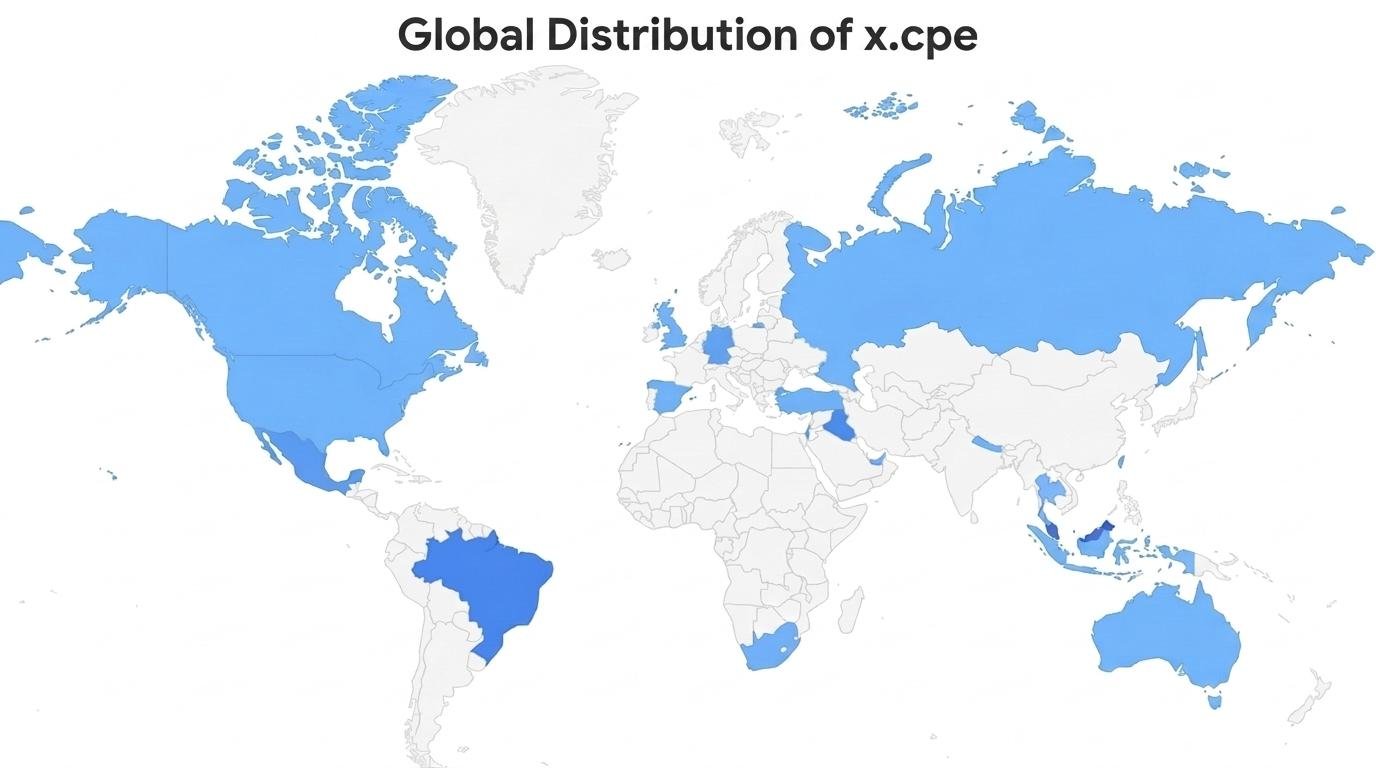 The scale behind the audit: Google mapped infected boxes across more than 200 countries. Image: Google
Two safety notes for the ADB step. Network debugging opens a door into the box for any device on your home network, so you will turn it on for one session and turn it off again before this tutorial ends. Accept a debugging prompt on the television only when it names your own computer. And skip any cleaner or antivirus app offered outside the Play Store. This audit uses only the tools Google ships and the settings already on the box.
Step 1: Record the Exact Identity of the Box
Action: with the remote, open Settings and find the About screen. On most Android TV boxes the path is Settings, then Device Preferences, then About. On Google TV builds the path is Settings, then System, then About. Write down three values exactly as shown: the model name, the Android version, and the build number. Menu labels vary a little by brand, so follow the shape of the path if your wording differs.
Action: turn the box over and read the printed label. Write down the brand on the front, the model code on the label, the maker name if one is printed, and the serial number. Keep the serial number in your private notes and out of any public post. Note where and when you bought the box as well. You will want the seller name if the verdict goes against the box.
Expected result: you hold two versions of the model identity, the software version from About and the printed version from the label. Both matter. The published lists use model strings in more than one spelling, so a box that reports itself as KM9PRO Max in About may appear on a list as KM9PRO_MAX. Keep both spellings in your notes and search both in the next step.
Step 2: Cross Check the Model Against the Published Lists
Action: open the Synthient report, The Internals of a Badbox Operation, and find its list of model names seen in the campaign. Search the page for your model in each spelling you recorded. The list runs to 182 names. Names confirmed in the reporting around the takedown include KM9PRO_MAX, KM7PLUS, and KD3, and many entries are generic strings such as 4K_Android_TV_Box, which shows why this step can only raise suspicion and never settle it.
Action: note the maker question separately from the brand question. Synthient links the MECOOL brand to Videostrong, and Google says Videostrong also built devices that other brands sold as their own. A MECOOL badge raises the stakes of the later steps. A different badge does not lower them, because the name on the front may not be the name of the company that built the firmware.
Action: as context only, check whether the brand appears on the Google TV partners page, linked in Sources, and record the answer. Google advises buyers to purchase set top boxes only from reputable manufacturers and points to its Android TV partner list. Hold that advice at its proper weight. XCPE shipped on devices that passed certification checks, per Google, so partner status and certification are background, not a verdict.
Expected result: one of two readings. Listed means your model name was seen in the campaign and the package checks below become decisive. Not listed means this step found nothing, and the package checks still decide, because Google found the code across many models and brands over multiple years and no public list is complete.
Step 3: Hunt for the Five Package Names in the App List
Action: open Settings, then Apps, then the full app list. Most builds label it See all apps. Find the option to show system apps, usually in a menu at the top of that list, and turn it on. Without that option the backdoor stays invisible, because it runs as a system app and the default list shows only apps with a launcher presence.
Action: scroll the full list slowly and look for these five package names, exactly as written:
x.cpe
com.oemservice
com.abc.nexus
com.android.system.ntp
com.android.sso.auth.handler
Action: read display names with care. The last two names on the list are droppers disguised as Android system applications, per Google, so a bland system sounding label proves nothing either way. Judge by package name, not by the friendly name beside an icon. One more name deserves a note. Google says the backdoor shared its configuration with the maker YokaTV Player software. A YokaTV Player app on its own is a streaming app and proves nothing. It earns a line in your notes only when it sits beside a package match above.
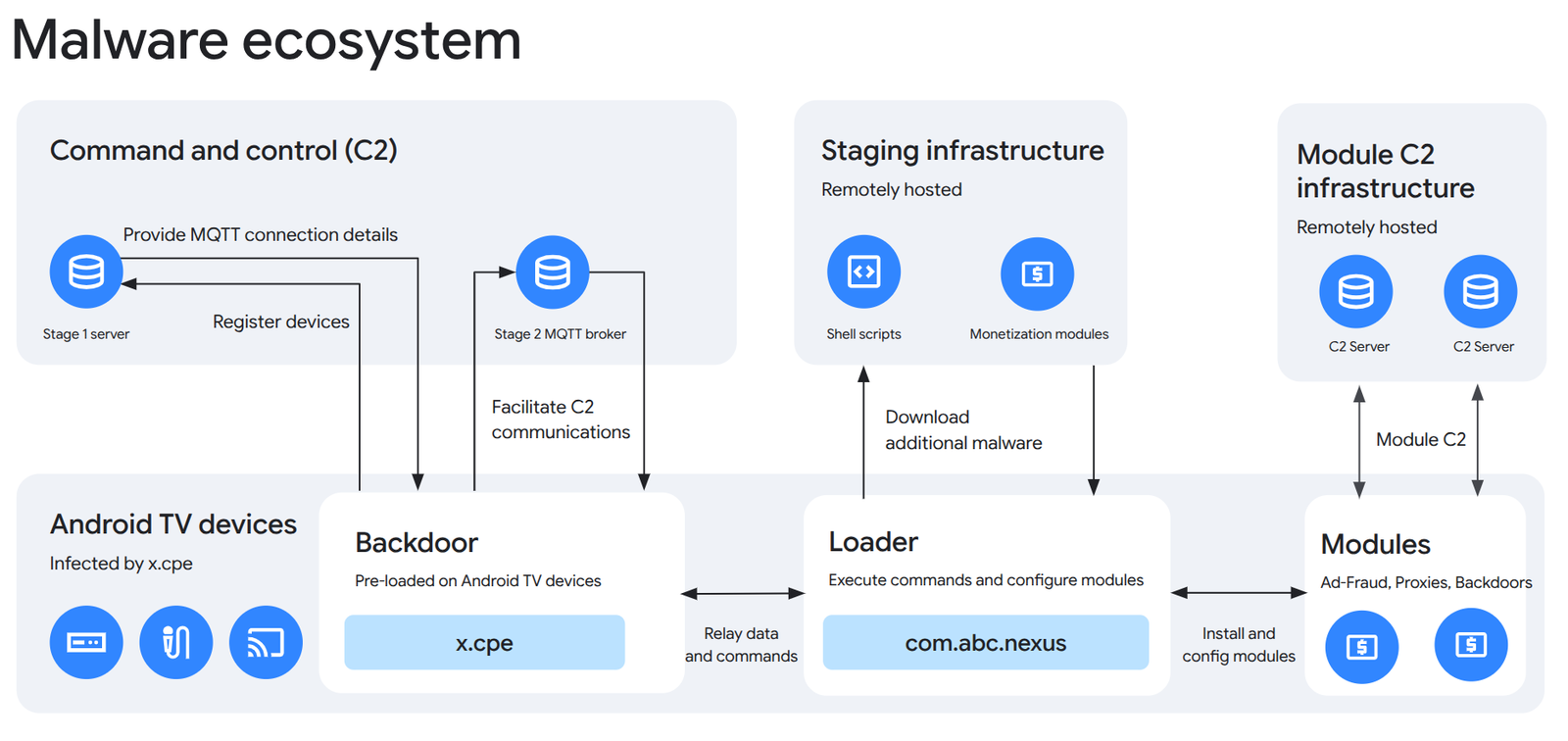 What the five names are: one backdoor in the firmware, one loader, and modules loaded for paying affiliates. Image: Google
Expected result: a match on x.cpe or com.oemservice is a match on the primary backdoor names Google published. A match on com.abc.nexus is a match on the loader. A match on either dropper name is a strong suspect signal that Step 5 can confirm by package path. No match means the remote check found nothing, and the audit continues, because some builds hide packages from vendor app lists.
Step 4: Test the Play Protect Setting the Backdoor Switches Off
Google describes one concrete act of sabotage in its report. The backdoor disables Google Play Protect app verification by setting the global value package_verifier_user_consent to -1. This step checks that act from both ends: the visible toggle on the television, and the raw value itself in Step 5.
Action: on a box running Android 11 or up, open the Play Store app, open the menu, choose Play Protect, and open its Settings. Confirm that Scan apps with Play Protect is on, and that Improve harmful app detection is on. Then run a scan from the Play Protect screen and record the result. On a box running Android 10 or lower, open Settings, then Apps, then Security & restrictions, and confirm that Verify apps is on. These are the paths Google publishes in its own Play Protect help page for Android TV.
Action: on the same box, open the Play Store, tap the profile icon, open Settings, open About, and read the Play Protect certification line. Record whether it says the device is certified.
Expected result: three readings matter. If Scan apps with Play Protect is off and you never turned it off, that matches the tampering Google described, and it counts as a suspect sign. If the certification line says the device is not certified on a box that was sold as a certified Google TV box, that is a second warning sign about the firmware as a whole. If both settings are on and the scan is clean, this step found nothing. A clean scan never overrides a package match from Step 3. The implant runs at system level and switched verification off in the first place, per Google, so its own scan is the weakest witness in this audit.
Step 5: Confirm the Package List Over ADB
This is the strongest check in the tutorial, because it asks the operating system for its full package list directly instead of trusting a vendor app list. Android Debug Bridge, usually shortened to ADB, is part of Android SDK Platform Tools from Google. Every command below is a read only query. None of them changes the box.
Action: download SDK Platform Tools from the Android developer page linked in Sources and unpack it on your computer. Open a terminal in the unpacked platform-tools folder and confirm the tool runs:
adb version
Expected result: the tool prints its version. The current Platform Tools release is 37.0.1, from July 2026.
Action: turn on debugging on the box. Open Settings, then Device Preferences, then About, or System, then About on Google TV builds. Select the Build entry, labelled Android TV OS build on some builds, seven times, until the box says you are now a developer. Go back one screen, open Developer options, and turn on USB debugging and Network debugging. Some newer builds name the wireless route Wireless debugging and show a pairing code and a pairing port instead. Follow what your box shows rather than assuming a layout. Then find the address of the box under Settings, then Network & Internet, then your connected network, and write down the IP address.
Action: connect from the computer, replacing the example address with the address of your box. Port 5555 is the common network debugging port. If your box showed a different port during pairing, use the port it showed, and use the adb pair command it directs you to first.
adb connect 192.168.1.50:5555
adb devices
Expected result: the television asks whether to allow debugging from this computer. Accept only if the computer is yours. The second command lists your box with the word device beside it. The word unauthorized means the prompt on the television was not accepted.
Action: record the identity of the box from the system itself, and compare it with your Step 1 notes:
adb shell getprop ro.product.model
adb shell getprop ro.product.manufacturer
adb shell getprop ro.build.fingerprint
adb shell getprop ro.mecool.device
Expected result: the first three commands print the model, the maker, and the exact firmware build. The fourth command deserves a pause. Google reports that the backdoor code reads this very property to decide which control host to contact, using one fixed host when the property reads true. A value of true means the firmware identifies the box as a MECOOL device whatever badge sits on the front. That is maker lineage, not proof of infection, and it belongs in your notes beside the Step 2 result.
Action: run the package hunt. On macOS and Linux:
adb shell pm list packages | grep -E "x\.cpe|oemservice|abc\.nexus|system\.ntp|sso\.auth"
On Windows, in Command Prompt, use the same list with the Windows filter:
adb shell pm list packages | findstr /I "oemservice nexus ntp auth cpe"
The Windows filter is broader than the macOS and Linux filter, so judge every line it prints by its full package name against the five names in Step 3 before you count it as a match.
Action: save the full package list to a file on the computer before you judge the filtered result, so your record survives the session:
adb shell pm list packages -f > tv-packages.txt
Expected result: silence from the filtered command means none of the five package names is installed under those spellings. Any printed line is a match, and the saved file shows the app file path beside each package, so you can see whether a match lives in a system location. For a named match, one more query confirms where it sits:
adb shell pm path com.oemservice
Run the same command with x.cpe or com.abc.nexus in place of the example name when a different name matched. A printed path confirms the package is really installed. No path means that package is absent.
Action: read the verifier value the backdoor tampers with:
adb shell settings get global package_verifier_user_consent
Expected result: a value of -1 means app verification consent was refused or switched off, which is exactly the change Google attributes to the backdoor. A value of 1 means consent is on. A reply of null means the value was never written on this build, and the Play Protect toggle state from Step 4 is your evidence for this check instead.
Action: close the door you opened. On the box, open Developer options, turn off Network debugging and USB debugging, and use the revoke authorizations option if your build offers one. On the computer, run adb disconnect and then adb kill-server.
Step 6: Check the Router for Control Traffic
This step is optional, and it is the only step where silence is expected even on a guilty box. Google took the control domains down in late October, so a dormant backdoor may place no calls at all. Treat traffic as a bonus witness, never as the judge.
Action: sign in to your router admin page and find its logs for DNS queries or for connections per device. Wording varies widely by maker, so follow the shape rather than a fixed path. Search the logs for the two domain families Google published as the core control infrastructure for XCPE:
szbboys.com
anyevonline.com
Google names mqtt.szbboys.com as the single broker host that carried control traffic for the samples it identified, on ports 3885 to 3887, and names the anyevonline.com hosts as the registration and configuration front door. If your router shows outbound connections from the address of the box to ports 3885, 3886, or 3887, record the time and the destination. The full indicator list in the Google report runs far longer, covering the affiliate modules. Search it for any domain your logs surface before you judge a hit.
Expected result: a log hit on either family, tied to the address of the box, is strong suspect evidence and belongs at the top of your notes. No hits means only that the box placed no calls your logs kept during the window they cover. The verdict rests on Steps 2 to 5.
Verification
The audit worked when you can place your box in exactly one row of this table using your own notes. Read the rows from the top. The first row your evidence fits is your verdict.
| Evidence from your notes | Verdict |
|---|---|
x.cpe or com.oemservice found in Step 3 or Step 5 | Confirmed match on the primary backdoor. Treat the box as compromised. |
com.abc.nexus, com.android.system.ntp, or com.android.sso.auth.handler found, and no primary name | Strong suspect. These are the loader and dropper names Google published. Treat the box as compromised unless the maker documents them in writing, which no maker has done in the public reporting. |
Model on the Synthient list, plus Play Protect scanning found off, or the verifier value reads -1 | Suspect. Two weak signs agree. Treat the box as compromised if it handles accounts you care about. |
| Model on the Synthient list only | Unproven. A model name alone does not confirm infection, per Synthient. Decide by risk. A box that only plays local files on a spare set is a different risk from the main box signed in to paid accounts. |
| No package match, verifier normal, model not listed | No evidence found. Suspicion is low and never zero, because the design evolved and new droppers vary. Keep Play Protect on and repeat this audit after any firmware update. |
Act on a confirmed or suspect verdict in this order:
- Take the box off the network. Pull the network cable or switch the box off, and leave it off the home network while you work through the rest of this list.
- From a clean device, change the passwords for every account that was signed in on the box, starting with the Google account and any streaming account with payment details attached. Google observed operators collecting account information, capturing the screen, and injecting keystrokes, so treat anything typed on the box as seen.
- Check those accounts for sign ins and purchases you do not recognise, from the same clean device.
- Write to the seller and the maker with your Step 1 record, your package evidence, and a request for clean firmware or a refund. As of November 3, no recall and no clean firmware programme appears in the public reports from Google, Synthient, or TrendAI, so a written trail is your leverage.
- Retire the box if no clean firmware arrives. Synthient recommends that affected devices be disposed of permanently, because a box with one backdoor may carry more. Do not sell it or pass it on. Take it to a local electronics recycling point when you replace it.
Troubleshooting
| Problem | Likely cause | Fix |
|---|---|---|
| The app list has no option to show system apps | The vendor build hides the toggle or places it under a different label | Skip to Step 5. The ADB package list includes system packages without any toggle. |
| The About screen shows no Build entry to select | The box uses a vendor settings shell with a different layout | Look under Device Preferences, then About, or System, then About. If no build entry exists at all, the maker exposes no user debugging route, and Steps 1 to 4 are your whole audit. |
adb connect is refused or times out | Network debugging is off, the address is wrong, or the computer sits on a different network | Confirm the address on the box, put both devices on the same home network, and accept the prompt on the television. A wired USB connection works on boxes with a service port. |
adb devices lists the box as unauthorized | The allow prompt on the television was missed or declined | Disconnect, connect again, and accept the prompt, allowing only your own computer. |
| The filtered package command prints nothing and you expected a match | The build uses a variant name, or the earlier app list reading was a display name and not a package name | Search your saved full list from Step 5 for the short strings oem, nexus, and cpe, and judge any hit by its full package name against the five names in Step 3. |
| Play Protect scan reports no harmful apps on a box with a package match | The backdoor is a system preload and it disabled verification in the first place, per Google | The package match outranks the scan. Follow the verdict actions above. |
The verifier command returns null | This build never wrote the value | Rely on the toggle state you recorded in Step 4 and note the null result in your record. |
| Router logs show no control domains | The control servers were taken down in late October, or the router keeps only a short log window | Silence is expected even on a guilty box. Rest the verdict on Steps 2 to 5. |
| The box has no Play Store at all | The box runs a build based on the Android Open Source Project without Google apps | Steps 4 and the certification reading do not apply. The model check and the ADB package hunt are your audit, and a box with no Play Protect has no safety net to restore. |
Next Steps
Make the audit a habit with a short tail. Repeat Steps 3 to 5 after any firmware update, since an update changes the package list you are trusting. Keep the saved package file from your first clean audit, if you got one, and compare later lists against it. New package names that appear after an update deserve the same scrutiny as the five names in this tutorial.
If you are buying a replacement, buy it like Google advises. Choose a reputable manufacturer, confirm the brand on the partner list, check the Play Protect certification line in the shop or on the day the box arrives, and run this audit on the new box before you sign in to anything. A cheap box is a computer that lives on your home network with your address on its traffic. The audit takes forty minutes. Run it before the box earns your passwords.
Package names, the verifier value, the control hosts, and the persistence behaviour checked against the Google Threat Intelligence Group report on the XCPE takedown, the Synthient investigation, and the Google Play Protect help page for Android TV, November 2026. Menu paths were checked against those documents and against published Android TV settings layouts. This audit was verified against the documents. It was not run on a physical box in this run, so use the Verification table on your own hardware to confirm each reading.
Sources
- Google Threat Intelligence Group, Shutting the Door on the XCPE Botnet, November 2, 2026. Primary source for the five package names, the system privilege level, the
/oem/partition persistence, the verifier value the backdoor sets, the control hosts and ports, and the statement that a system preload cannot be removed by the user. Both body images are from this report and are credited to Google. - Synthient, The Internals of a Badbox Operation, November 2026. Source for the MECOOL KM9PRO Max examination, the link between MECOOL and Videostrong, the list of 182 model names seen in the campaign, the warning that a model name alone does not confirm infection, and the recommendation that affected devices be disposed of permanently.
- Google Support, Protect your TV from harmful apps with Google Play Protect. Source for the Play Protect paths on Android TV, split between Android 11 and up and Android 10 and lower.
- Android Developers, SDK Platform Tools release notes. Source for the Platform Tools download and the 37.0.1 release line used in Step 5.
- BleepingComputer, Google disrupts million device XCPE Android malware botnet, bans TV box maker, November 2, 2026. Reporting on the Synthient investigation and the takedown, used to cross check the model list reporting and the partner positions on removal.
- Google TV, Our global partners. The partner list Google points buyers to, used as context in Step 2.
- Hero image: Dirty Static, generated in house style
END OF TRANSMISSION
Stay curious. Question everything.